User guide
From buying an account and installing the extension to every single button, one picture per step. First time: follow it from the top and you will be running within half an hour. Later, use it as a reference.
1. What LinkedIn Angel is
A Chrome extension that helps exporters find and connect with customers on LinkedIn. It works in two steps: Collect turns the people in a Sales Navigator search into public profile links that a normal account can invite, and stores them with job title, company, industry and region in a lead list on your computer; Connect picks people from that list by your filters and sends invitations one at a time at a safe pace, counting one only when LinkedIn's receipt confirms it went out.
How fast and how many per day come from the server; a new account starts small for the first few days and grows. You only do three things: set the filters, click start, read the results. The lead list stays on your own computer and is never uploaded.
| Feature | What it does |
|---|---|
| Collect | Pages through a Sales Navigator search results page on its own and stores people as public profile links |
| Import links / Scan page | Paste profile links you already have, or pull the links on the current page into the list |
| Filters | Pick people by age, experience, connections, industry, company, country and job title; preview before inviting |
| Search / Suggestions / Profile links / Queue / Sent | Five tabs on the Connect page: search with conditions in the panel, pull LinkedIn's suggestions, paste links, all listed to tick before adding; the queue is visible; sent invitations can be ticked and withdrawn |
| Connect | Sends invitations one by one, only to verified people, without a note by default (templates can be turned on), counted as sent only with LinkedIn's receipt |
| Connections | Syncs your LinkedIn connections to this computer: search, group, annotate, mine contact details, export a sheet Excel opens directly |
| Bulk messages / do-not-send list | Messages connections or group members one to one, random templates, {name} greeting, skips anyone messaged within N days; people you never want to message go on the do-not-send list |
| Groups | Reads the LinkedIn groups you belong to and their members; tick to connect or message |
| Settings | Speed in three gears, daily limits, safety status; the seconds are still randomised by the server |
| Lead list / Export CSV | Collected people and the record of who was invited stay on your computer; export to Excel any time |
| Cross-account de-dup | Among your own accounts, each person is pulled once and never invited twice |
| One-click account warm-up (Ultra) | Browse and like → accept invitations → pull leads → send invitations, the whole day's amount on its own |
| 5 accounts at once (Ultra) | One account can be signed in on up to 5 browsers at once, each running its own LinkedIn account |
| Scheduled start (Ultra) | Opens LinkedIn and starts by itself at a set time every day — no clicking |
| Like posts / accept invitations / withdraw old invitations | Three single actions, available on Standard too (suggested people are listed for ticking on the Connect page) |
| 5 LinkedIn accounts | One account binds up to 5 LinkedIn accounts; unbinding to switch is capped at 5 per day |
| 10 languages | Both the panel and the website switch: Chinese, English, Japanese, Korean, German, French, Spanish, Portuguese, Russian, Arabic |
| By hand | LinkedIn Angel | |
|---|---|---|
| Clicks | One by one | Click start once; it pages and sends by itself |
| Pace | By feel, easily too fast | Set by the server to mimic real people; new accounts start small |
| Hitting a rate limit | Often unnoticed, you keep clicking | Stops and cools down at once, never pushes through |
| Did it go out? | No way to know | Counted as sent only with LinkedIn's receipt; without one it is marked unsure and never resent |
| Duplicate invitations | Easy to repeat | One entry per profile link, de-duplicated across your accounts too |
2. Before you start
A computer + Chrome
Windows or Mac. You need the Chrome browser; Edge and other Chromium browsers work the same way. Phones do not.
A LinkedIn account
Sign in to linkedin.com in the browser first. For a newly registered LinkedIn account the extension keeps the amounts small for the first few days on its own.
Sales Navigator
Collecting relies on Sales Navigator search results, which is its core strength. Without it you can still paste links with “Import links” or use “Scan page”; connecting and warm-up do not need it.
A network that opens LinkedIn
If the browser can open LinkedIn, the extension works. If you route traffic with PAC or rules, add linkedin.com and licdn.com to them; our server is reachable with or without a proxy.
3. Buying accounts and handing them to staff
The extension signs in with a sub-account. First register a main account on the website; use it to buy sub-accounts and read their passwords. Each sub-account binds up to 5 LinkedIn accounts; just send the login to whoever uses it. If a reseller gave you an account, use it directly and skip this section.
- Register the main account
Open “My account” on the website, click “Sign up”, enter an email and a password (at least 8 characters). This account is only for buying and managing; the extension does not sign in with it.
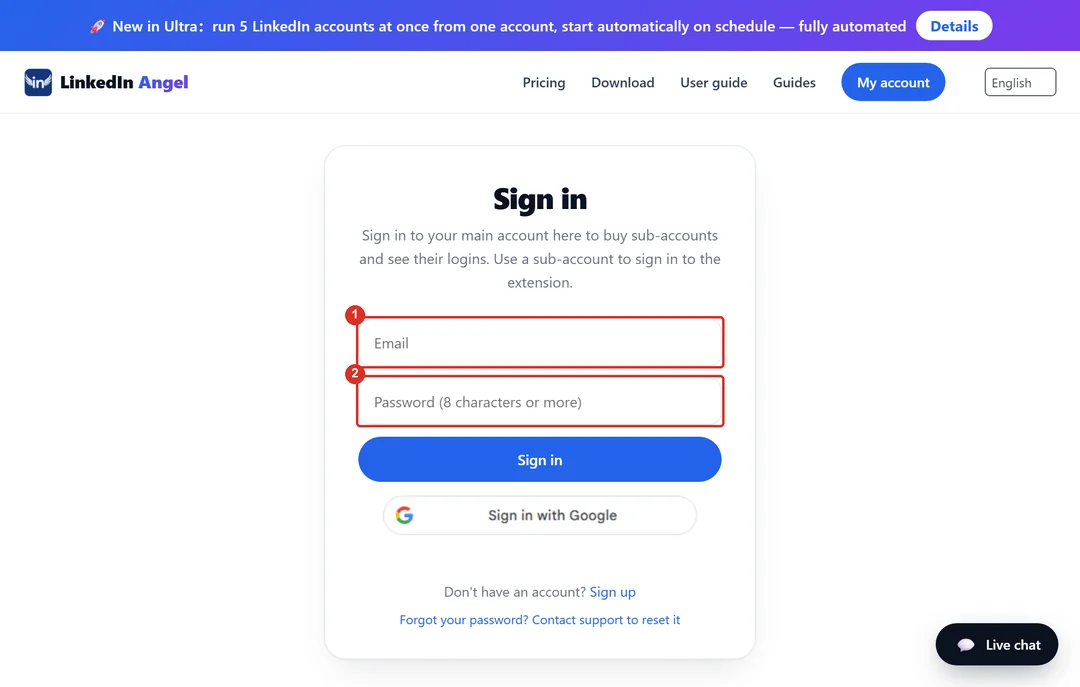
- Email: if you forget the password, support resets it by this address
- Password: at least 8 characters
- Check prices, choose a duration
The Pricing page sells per account; one account manages 5 LinkedIn accounts. Buy as many as you need — no tiers.
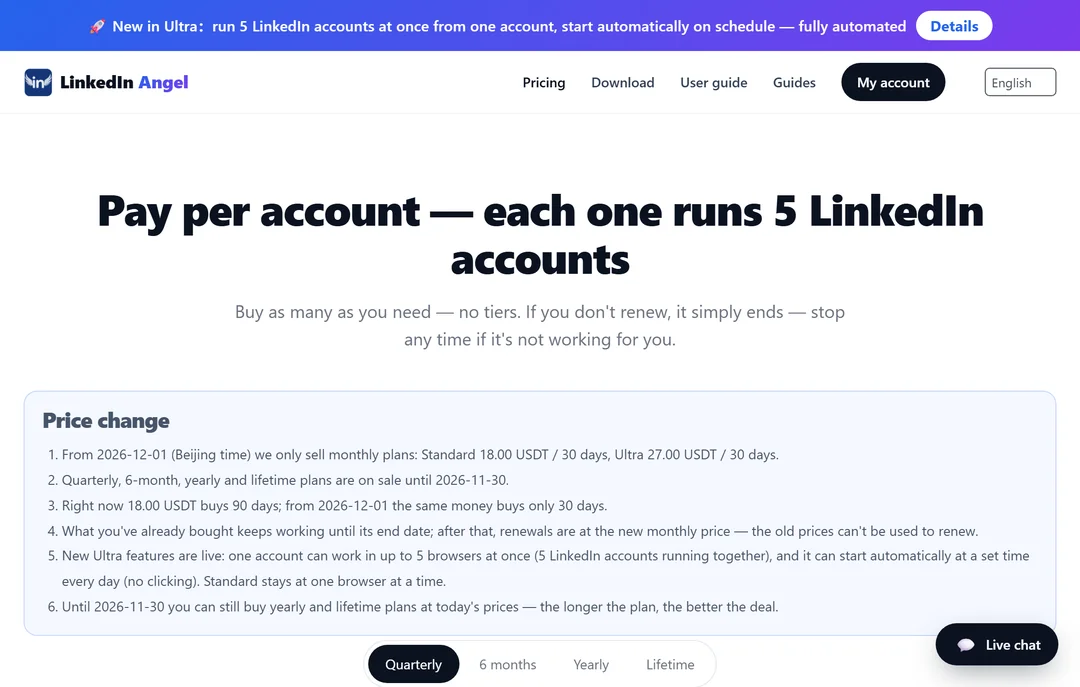
- Plans and prices are here; a plan simply ends if you do not renew
- Order and pay in USDT
After signing in, choose how many and how long under “My account”, then click “Confirm order”. The page shows a receiving address and an amount with a decimal tail: use the USDT-TRC20 (TRON) network only, transfer exactly that amount, not one decimal less. Those decimals are the only way to recognise your payment. Exchanges deduct a withdrawal fee, so make sure the amount that arrives equals the amount shown.
- Get the sub-account logins
About 1–2 minutes after the transfer the order activates automatically and the sub-account logins appear on the page; click “Copy all logins”. You can come back to “My account” to read them any time.
- Hand them to staff
Send each person one sub-account login. Sub-accounts under the same customer de-duplicate automatically and never invite the same person. On Standard a sub-account can be signed in on one browser at a time; on Ultra, on up to 5 browsers at once.
4. Installing the extension (nine steps, one picture each)
Shown on Windows + Chrome. Mac is the same; for Edge use edge://extensions instead, everything else is identical.
- Download
Open the website's Download page and click “Download extension” to get lingying-tianshi.zip.
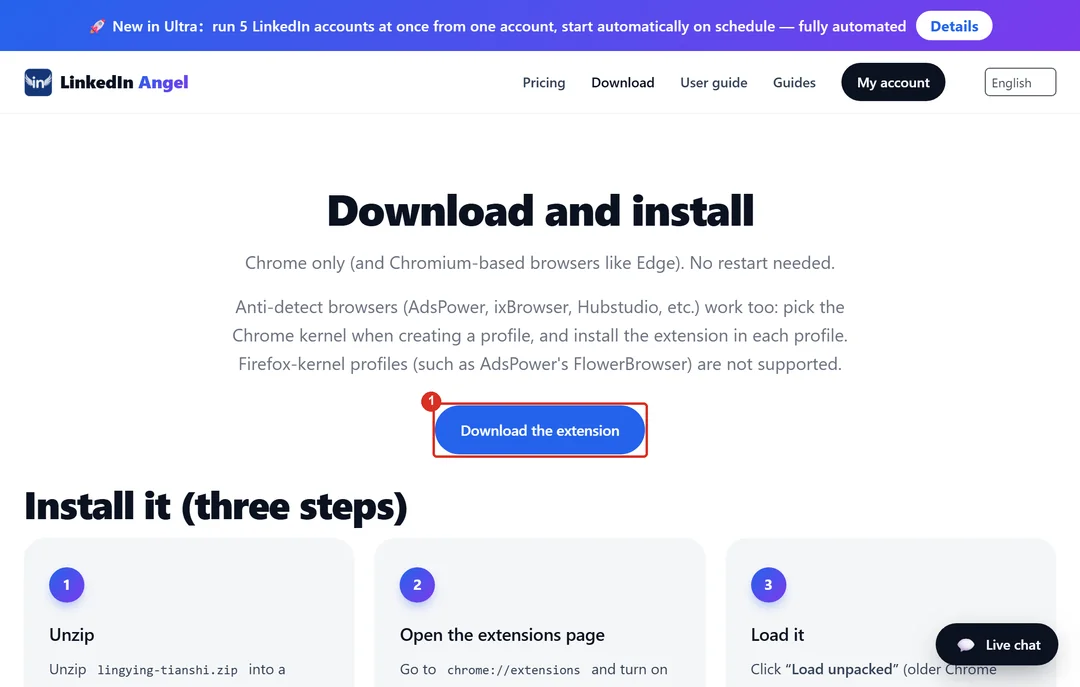
- Click here to download; the browser saves it to the Downloads folder
- Unzip
Find lingying-tianshi.zip in Downloads, right-click → “Extract All”, and extract it to a fixed place you will never delete or move (for example a folder on drive D). Future updates are copied into the same folder, so your lead list and settings survive.
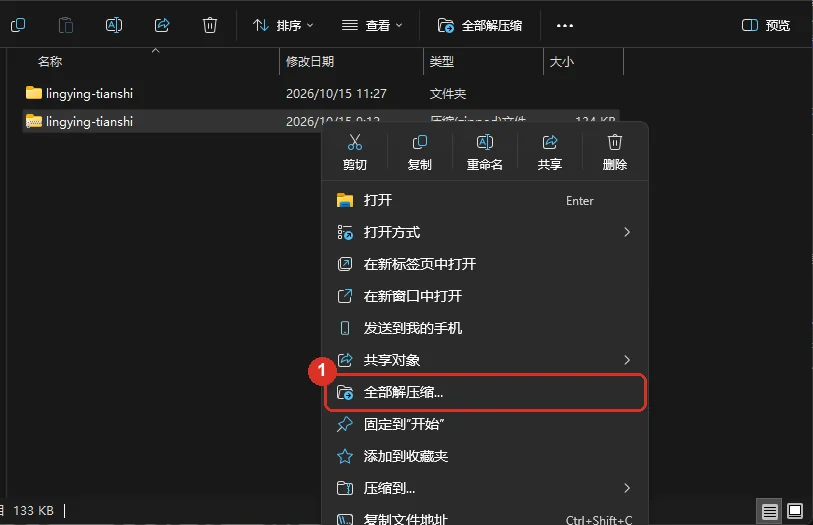
- Right-click the zip and choose “Extract All”
- Find the extracted folder
Open the extracted lingying-tianshi folder; it contains the file manifest.json, so this is the one. When picking a folder later, pick this level, not the one outside it.
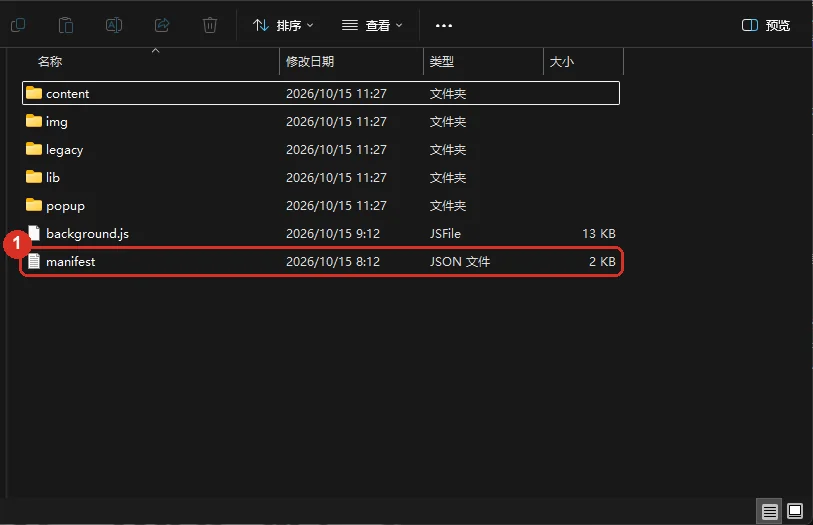
- Seeing manifest.json means you are at the right level
- Open the extensions page
Type chrome://extensions in Chrome's address bar and press Enter. Or click “⋮” at the top right → “Extensions” → “Manage extensions”.

- Type chrome://extensions in the address bar and press Enter
- Turn on “Developer mode”
Switch on “Developer mode” at the top right. The “Load unpacked” button only appears once it is on.
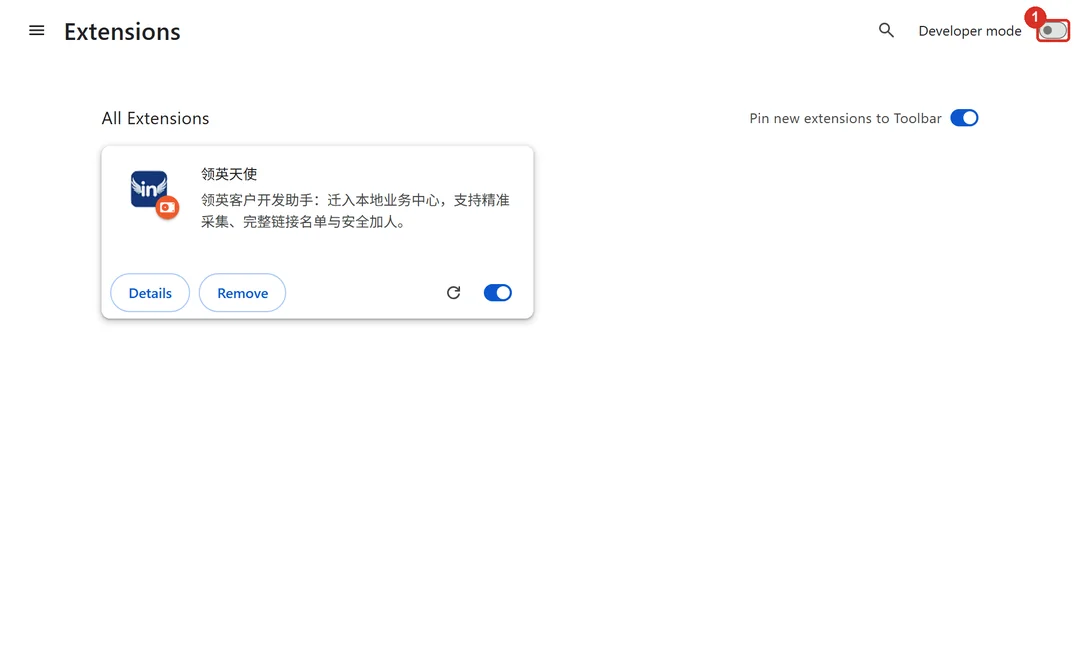
- Turn this switch on
- Click “Load unpacked”
The button appears at the top left; click it. Older Chrome versions call it “Load unpacked extension”, it is the same thing.
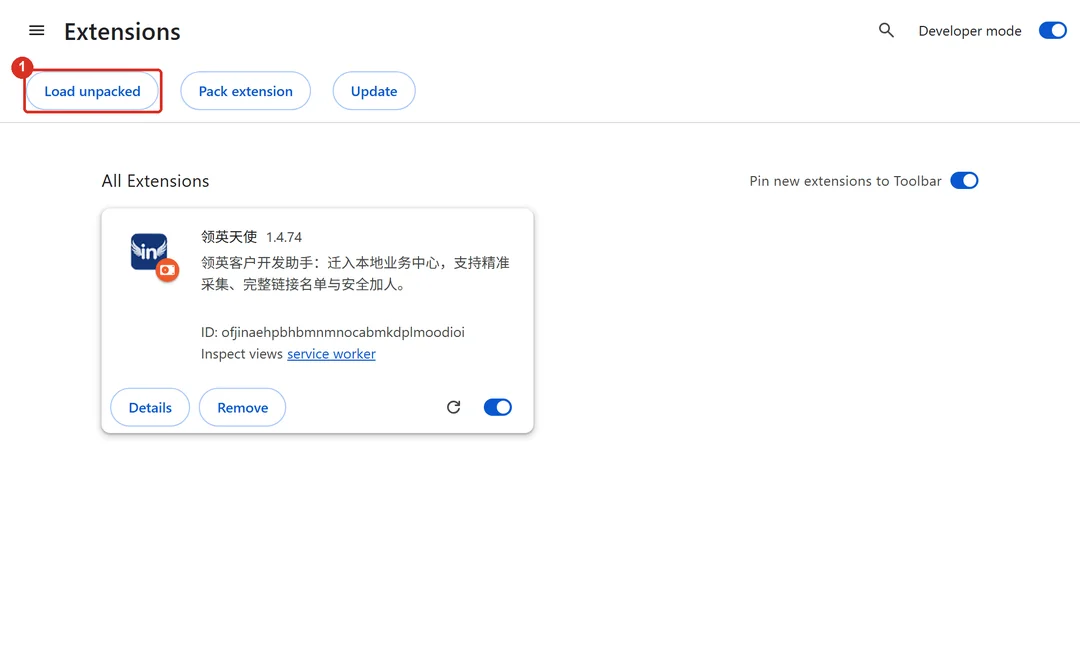
- Click this button
- Pick the extracted folder
A folder picker opens. Find the lingying-tianshi folder from step 3, click it once to select it, then click “Select Folder”.
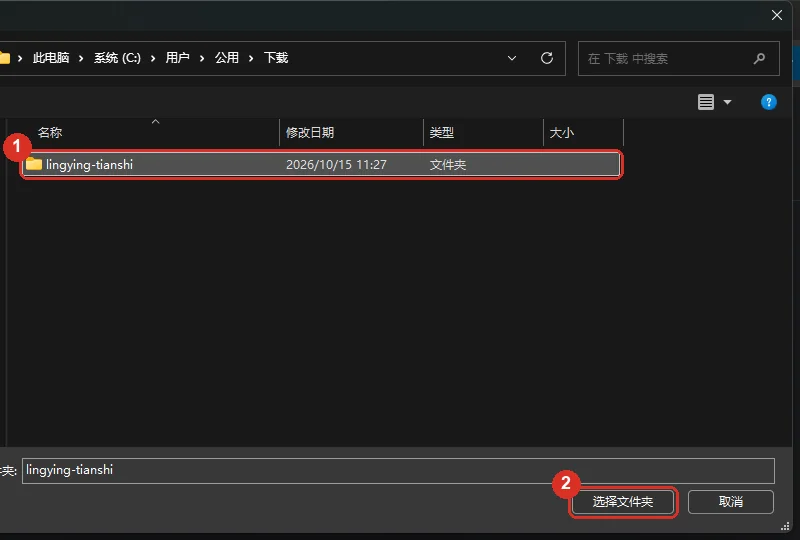
- Click once to select lingying-tianshi
- Click “Select Folder”
- The LinkedIn Angel card appears: installed
“领英天使 (LinkedIn Angel)” and its version number show up in the list. If the switch at the bottom right of the card is grey, click it to turn it on. Chrome may show “Safety check: Chrome can't verify the source of this extension” at the top; it says that about every manually loaded extension, do not click Remove.
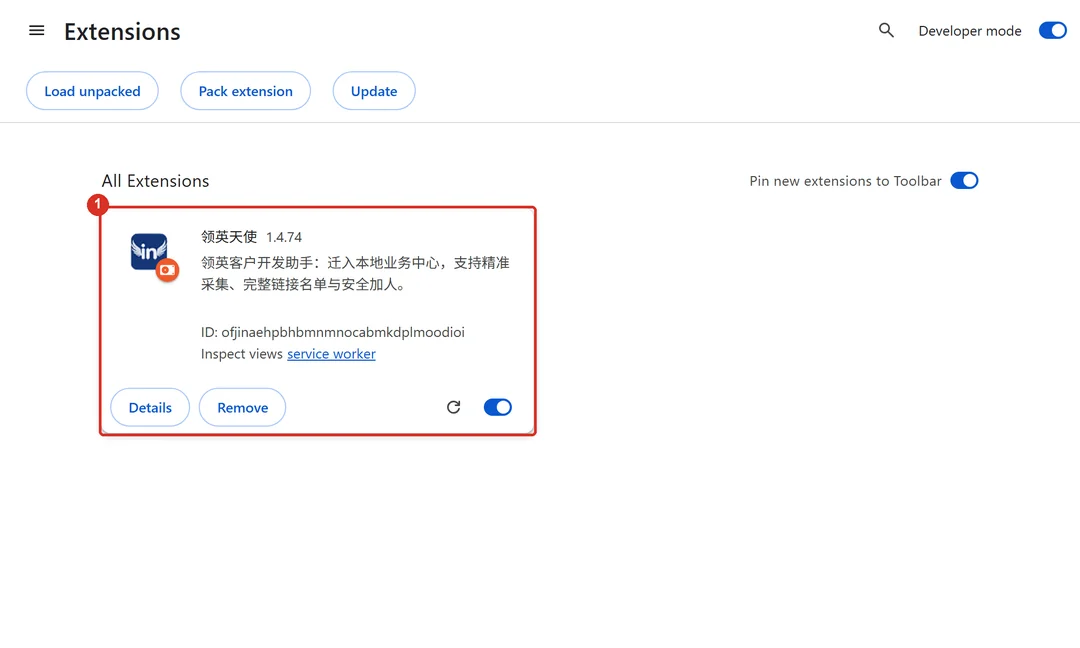
- This card appearing means it is installed
- Pin the icon to the toolbar
Click the puzzle-piece button at the top right of the browser and click the pin next to “领英天使”; the icon stays on the toolbar, and you will use it to sign in and update. Then open linkedin.com: a blue round icon appears at the top right of the page, that is the panel.
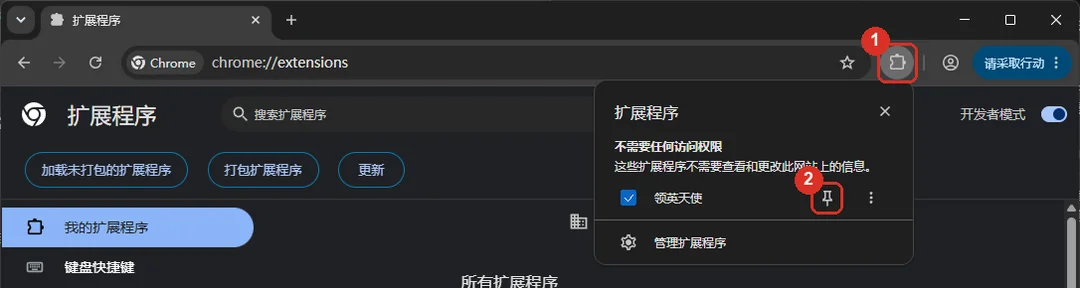
- Puzzle-piece button
- Click the pin
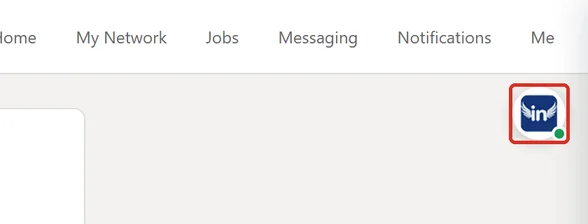
Open LinkedIn: the blue round icon at the top right is the panel. Green dot = ready, yellow = there is a notice, red = needs your attention.
5. Sign in to the extension and authorize a LinkedIn account
- Sign in to the extension
Click the LinkedIn Angel icon at the top right of the browser and enter the sub-account login (the one shown under “My account” on the website, or the one someone sent you).
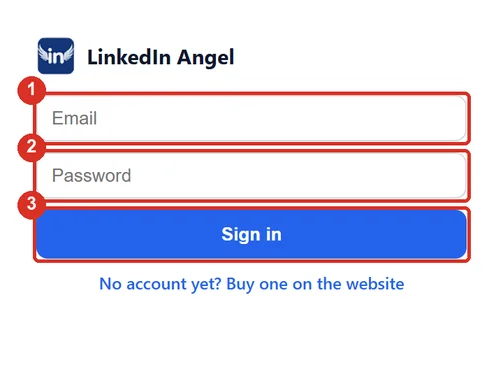
- Account (an email address)
- Password
- Click Sign in. Once you are in, this popup turns into the one below
- Open the panel
After signing in the popup looks like the one below. Open linkedin.com and click the blue round icon at the top right of the page, or click “Open the panel” in the popup; the panel slides in from the right.
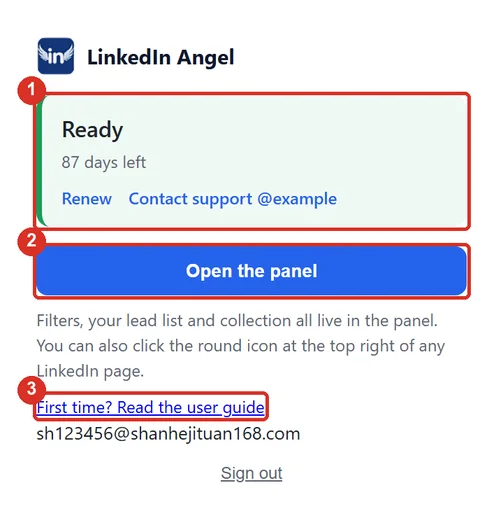
- Account status and days left
- Open the panel (same as clicking the round icon at the top right)
- Come back to this guide any time
- Authorize this LinkedIn account
The top of the panel shows which LinkedIn account is signed in, with a blue “Authorize” button next to it; click it. When the small dot on the round icon turns green it is ready. One account binds 5 LinkedIn accounts; to switch, unbind on the Account page and bind again.
Where “Authorize” is: see ① in the Collect page screenshot below
6. Searching for customers in Sales Navigator
Collecting starts from a page of Sales Navigator search results. This section shows how to get a page of the right people.
Left: filters
Job title: Current job title Region: Geography Industry Company size: Company headcount Relationship: 2nd, 3rdRight: search results, 25 on this page
Paging is at the bottom; the panel collects from this page
Schematic. Sales Navigator's layout changes over time; positions may differ.
- Open Sales Navigator
After signing in to LinkedIn, use “Sales Navigator” in the top navigation or open linkedin.com/sales directly. A Sales Navigator subscription is required.
- Search for people (Leads), not companies
Choose the Leads search. Type the job title keywords you want into the search box, in English, for example purchasing manager, buyer, procurement.
- Add filters on the left
The four most useful: Current job title, Geography (pick the target countries, not China), Industry and Company headcount. For Relationship choose 2nd and 3rd; 1st-degree people are already connections.
- Check the result count; narrow down if it is huge
Hundreds of pages means the filters are too loose, add one or two more; a few pages is enough for one run. Once you see the result list, stay on that page and do not open anyone's profile.
- Go back to the panel's Collect page and click Start
Open the panel with the blue round icon at the top right; the Collect page title shows “N on this page”. Click Start and it pages through on its own until it reaches the count you set.
7. Collect
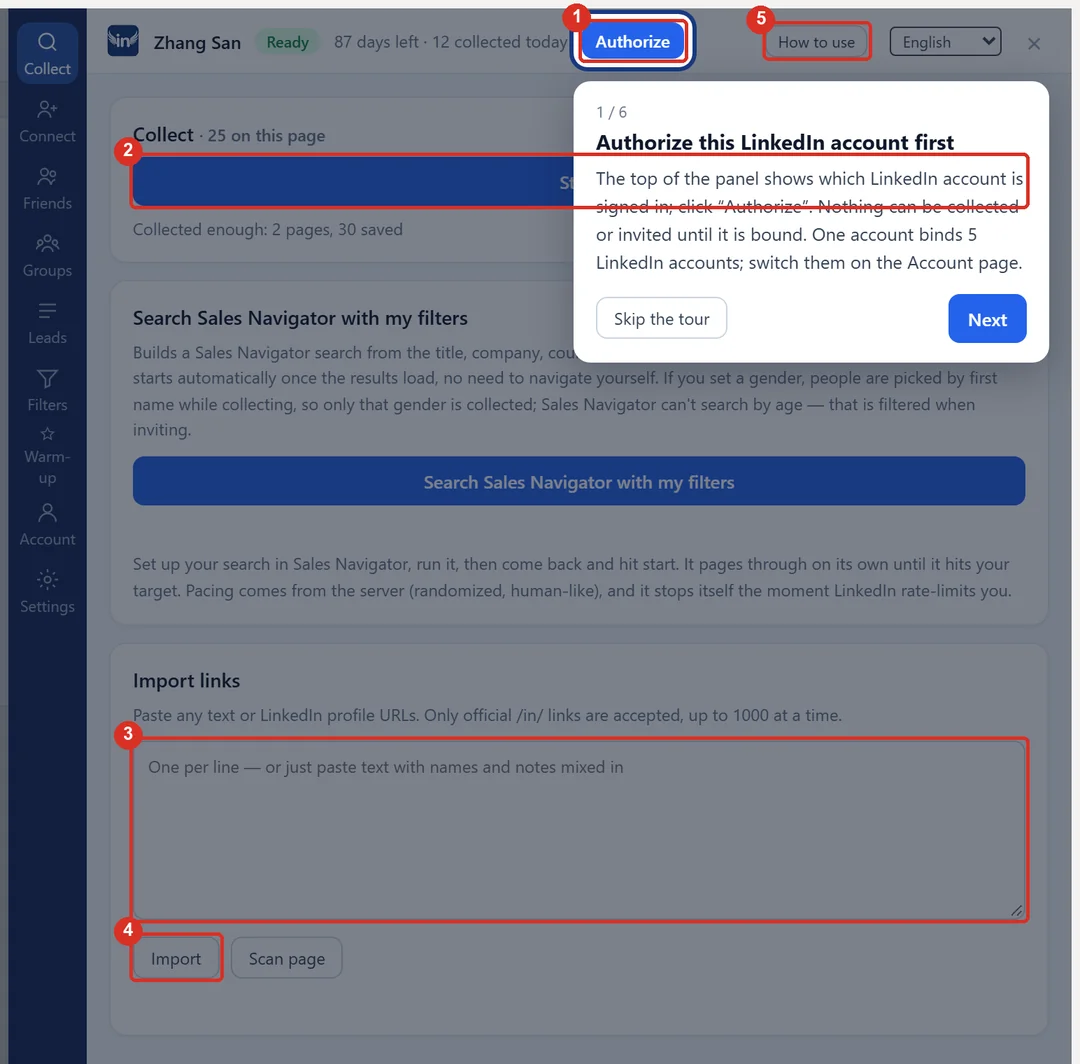
- Authorize: only shown while the current LinkedIn account is not yet bound to your account; one click binds it
- Start: only clickable on a Sales Navigator search results page, where the title says “N on this page”; click again to stop
- Import links: paste LinkedIn profile links you already have (starting with /in/), one per line; text mixed in is fine
- Import: pasted people go straight into the lead list without passing the filters; up to 1000 at a time
- How to use: opens this guide any time
How to collect
- Set the filters first
On the Filters page fill in “Target count” (30 the first time) and set one or two filters.
- Stay on a Sales Navigator search results page
Search as in the previous section. The panel's Collect title shows “N on this page” only when it has recognised the page.
- Click “Start”
It pages through on its own and writes “Page X · N/target collected” under the button in real time. Do not close this tab while collecting; switching to other tabs is fine.
- Read why it stopped
It stops on its own when the target is reached, the last page is done, or a rate limit is hit; the reason is written under the button. Then check “Ready” on the Leads page.
When collecting stops
| Under the button | Meaning | What to do |
|---|---|---|
| Collected enough | “Target count” reached | Normal; check the Leads page |
| No next page | The search results ran out | Change the search and run another page |
| Search exhausted: LinkedIn says there are no more results | The search results ran out | Change the search and run another page |
| Reached the page limit for one run | The maximum pages for one run is reached | Click Start again — it continues from the page it noted (kept for one day) |
| LinkedIn redirected to another page — deal with it, then collect again | LinkedIn showed a verification page or sent you elsewhere | Sort it out on LinkedIn first, then go back to the search page and click Start |
| Network dropped or timed out — the page was discarded, nothing saved | The page wasn't fully read; better nothing than half a page | Once the network is back, click Start again — it continues from this page |
| LinkedIn only allows 100 pages — change the search filters and collect again | One search can be paged 100 pages at most | Change the search filters and collect again |
| N pages in a row with nobody new — stopped for now | Everyone on these pages was already in the list, didn't meet the filters, or has no public profile | Change the search filters and collect again; to keep paging, click Start again |
| N pages in a row with nobody new: names the “Surname”, “Gender” or “Filters” page condition that dropped them | Most people on these pages were dropped by that condition | Check that condition on the “Filters” page — set wrong or too strict? To keep paging, click Start again |
| Page turn didn't respond — reopening page N | The page wouldn't turn, so the extension opens the next page's address directly | Nothing to do — collecting continues once it loads |
| Couldn't get to page N — stopped | After reopening it was still the same page | Refresh the page and click Start — it continues from that page |
| Rate-limited by LinkedIn — stopped on purpose | LinkedIn limited this account | Wait for the cooldown to end before collecting again; do not switch accounts and push on |
| Daily limit reached (N/cap), back tomorrow | Today's amount is used up | Collect again tomorrow |
| Only N people were readable on this page, not fully rendered | The page did not load fully; it would rather stop than take incomplete data | Refresh the page, wait for it to finish loading, then click again |
| The page layout may have changed | LinkedIn changed the page | Contact support; it is fixed on the server side, no update needed on your side |
| Another tab is collecting | The same account runs in one tab at a time | Stop it there first |
Without Sales Navigator: Import links, Scan page
If you already have LinkedIn profile links (starting with /in/), paste them into the “Import links” box and click “Import”; text with names and punctuation mixed in is fine, up to 1000 at a time. On someone's profile page, “Scan page” pulls the links on that page into the list. These people go straight into the list without passing the filters.
8. Filters
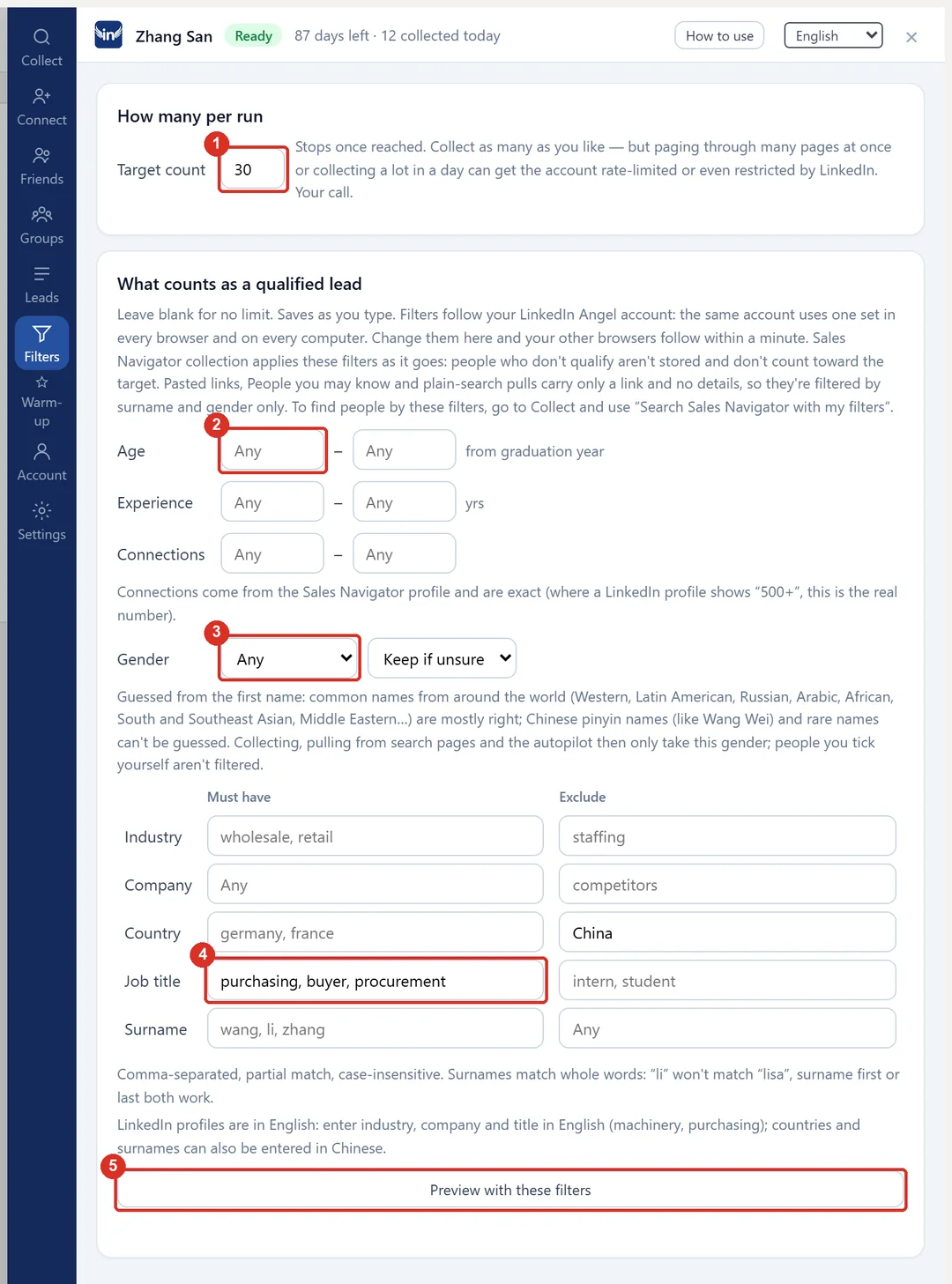
- Target count: how many to collect per run; it stops once reached
- Age, experience, connections: enter a range, empty = any; age and experience are estimated from the profile, so they are only a rough filter
- Gender: guessed from the first name — keep only men or only women; pinyin and rare names can't be guessed, so choose whether to keep or drop them
- Industry, company, country, title, surname: each has “must include” and “exclude if present”; separate words with commas, case-insensitive; surnames match whole words (“li” won't match “lisa”)
- LinkedIn profiles are in English: enter industry, company and title in English (machinery, purchasing); countries and surnames also work in Chinese, and Hong Kong / Taiwan spellings such as Wong count too; locations without a country (e.g. Greater Chicago Area) are not dropped by the country filter
- Sales Navigator collection applies the filters as it goes: people who don't qualify aren't stored and don't count toward the target; pasted links, People you may know and plain-search pulls carry only a link and no details, so they're filtered by surname and gender only; to find people by these filters, go to Collect and use “Search Sales Navigator with my filters”
- Connections: taken from the Sales Navigator profile and exact (where a LinkedIn profile shows “500+”, this is the real number); leave the maximum empty to skip this filter
- Preview: runs the current filters over the existing list to show how many remain and why the rest were filtered out
- Filters follow your LinkedIn Angel account: the same account uses one set in every browser and on every computer. Change them here and your other browsers follow within a minute.
| Filters | How to fill in | Example |
|---|---|---|
| Target count | How many to collect per run | 30 the first time, then 100–300 |
| Age | A range, estimated from graduation year, rough only | 28 – 55 |
| Experience | A range, estimated from the profile | 3 – any |
| Connections | A range; accounts with very few connections are mostly inactive | 100 – any |
| Industry | Must have / Exclude, comma-separated | Must have wholesale, retail; exclude staffing |
| Company | Exclude competitors and existing customers | Exclude competitor names |
| Country | Target markets; exclude China | Must have germany, france; exclude China |
| Job title | Decision makers, purchasing roles | Must have purchasing, buyer, procurement; exclude intern, student |
Changes save automatically. People with missing data always pass, so a possibly qualified customer is never dropped just because we could not collect their data. Connecting only picks people from “Ready” who match the filters; a changed filter applies from the next round.
9. Connect
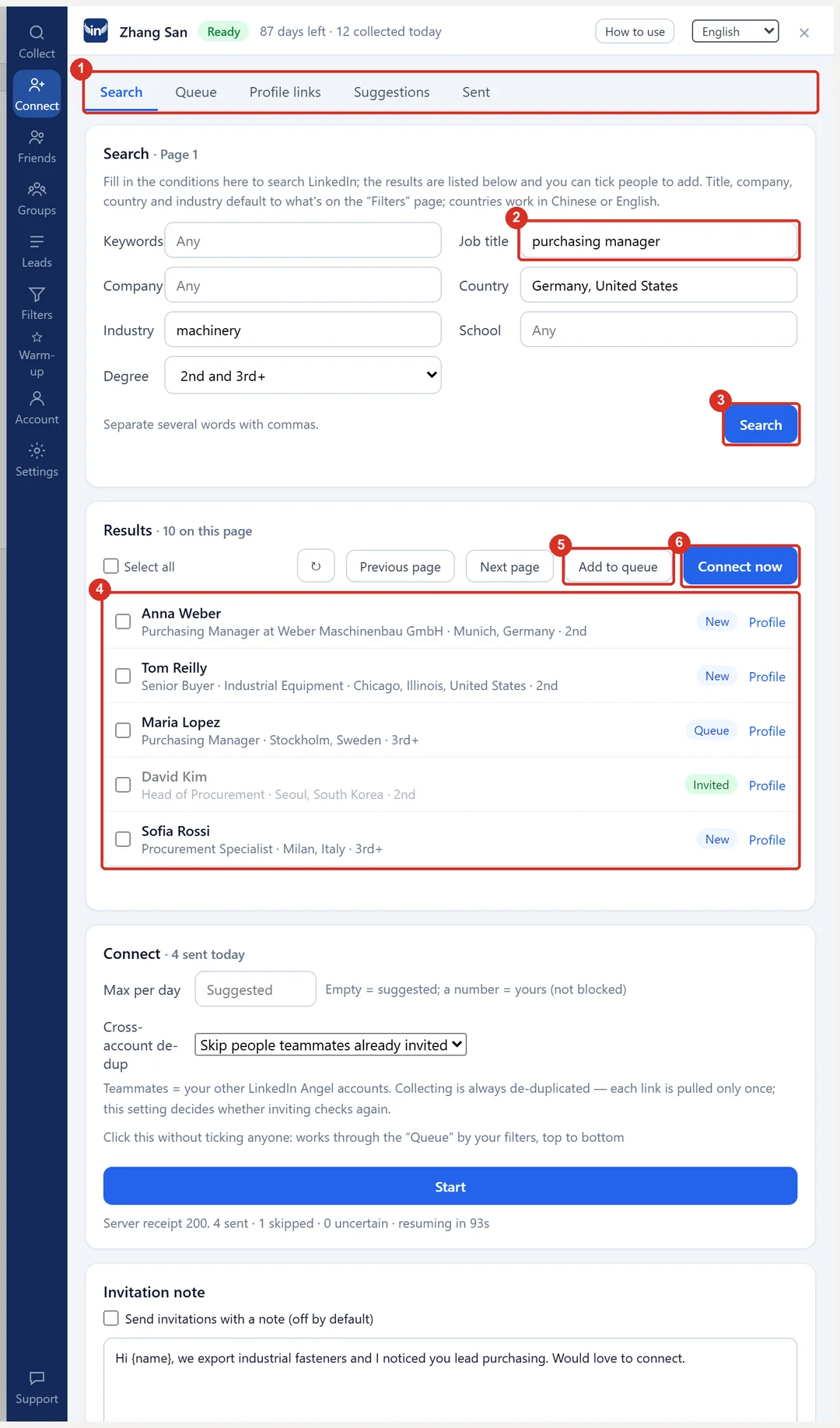
- Five tabs: “Search” searches with conditions, “Queue” is everyone waiting to be added, “Profile links” is the links you pasted, “Suggestions” is who LinkedIn suggests, “Sent” is your pending invitations
- Conditions: keywords, title, company, country, industry, school and degree; title, company, country and industry default to the “Filters” page, countries work in Chinese or English
- Search: builds a LinkedIn search URL and opens it in this tab; once the results load the panel pops up by itself with the people listed below; “Previous page” and “Next page” turn pages
- The results: name, headline, location and degree; people already in the list show their status (queued, invited…); tick the people to add. Open this tab on a Sales Navigator results page and the people on that page are listed too; ticked people are resolved to public profiles before adding
- Add to queue: the ticked people go into the list and wait, nothing is sent yet
- Connect now: the ticked people go into the list and invitations start right away, filters don't apply
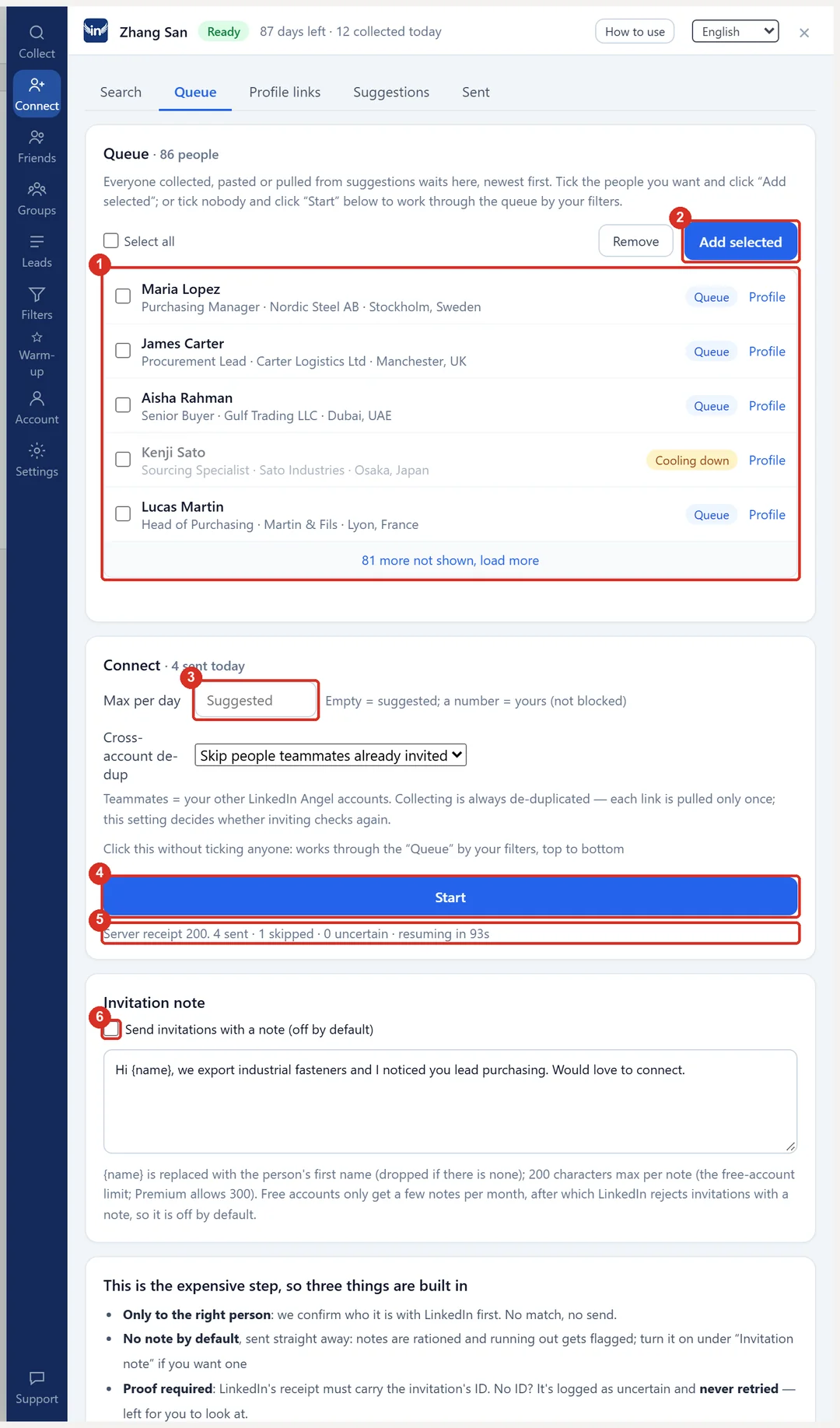
- The queue: people waiting to be added, newest first, 50 per page; tick the people to add, click “Profile” to open them in a new tab
- Add selected: invites only the ticked people; “Remove” deletes the ticked people from the list
- Max per day: leave blank to follow the server's suggestion; a number you enter is used as is, nothing stops you
- Start: click without ticking anyone to work through the “Queue” by your filters, top to bottom; click again to stop
- This round's tally: sent = LinkedIn confirmed it went out; skipped = already connected, invited recently, or not matching the filters; unsure = unclear whether it went out, and it will not be resent
- Invitation note: off by default. When on, each invitation picks one template at random and {name} becomes the person's first name; free accounts get very few notes a month and LinkedIn rejects noted invitations after that
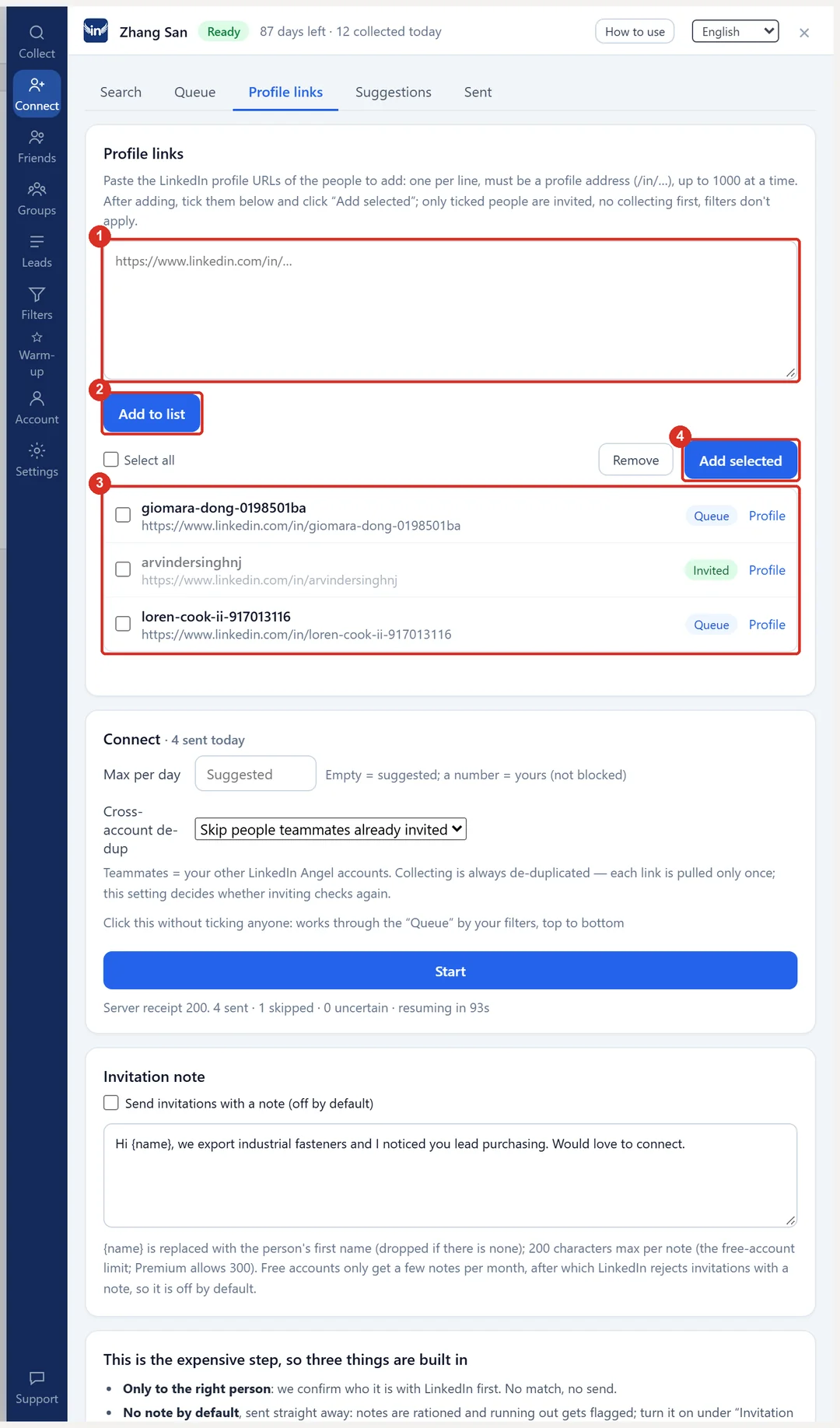
- Paste links: one LinkedIn /in/ profile URL per line, up to 1000 at a time
- Add to list: validated links go into the list, and the ones just pasted are ticked automatically
- The link list: every link you pasted, with its status (queued, invited, skipped, cooling down)
- Add selected: invites only these ticked people, filters don't apply; anyone already invited is not re-sent
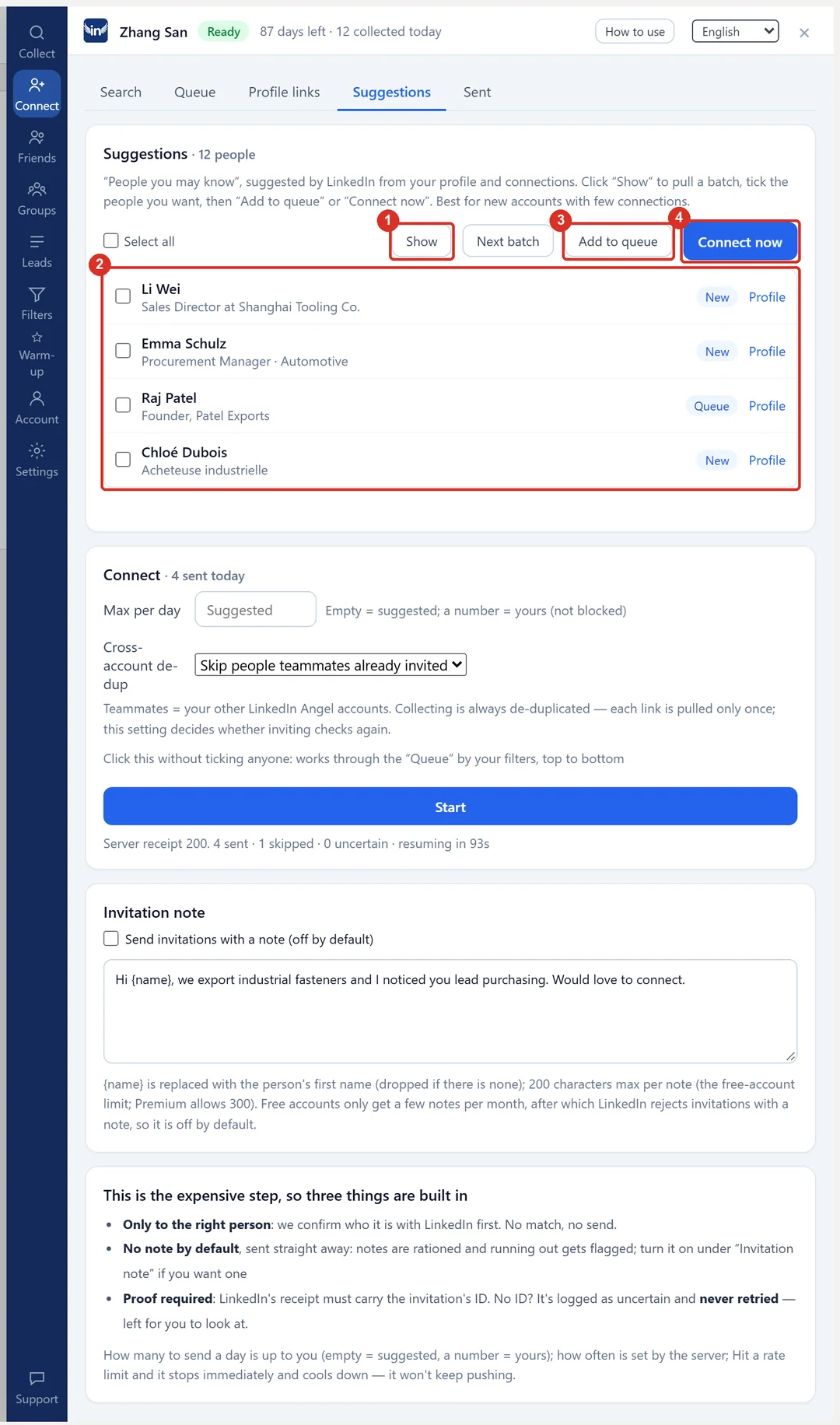
- Show / Next batch: pulls a batch of LinkedIn's “People you may know”; click “Next batch” to keep going
- The suggestions: name and headline; people already in the list show their status; tick the people to add
- Add to queue: the ticked people go into the list and wait
- Connect now: the ticked people go into the list and invitations start right away
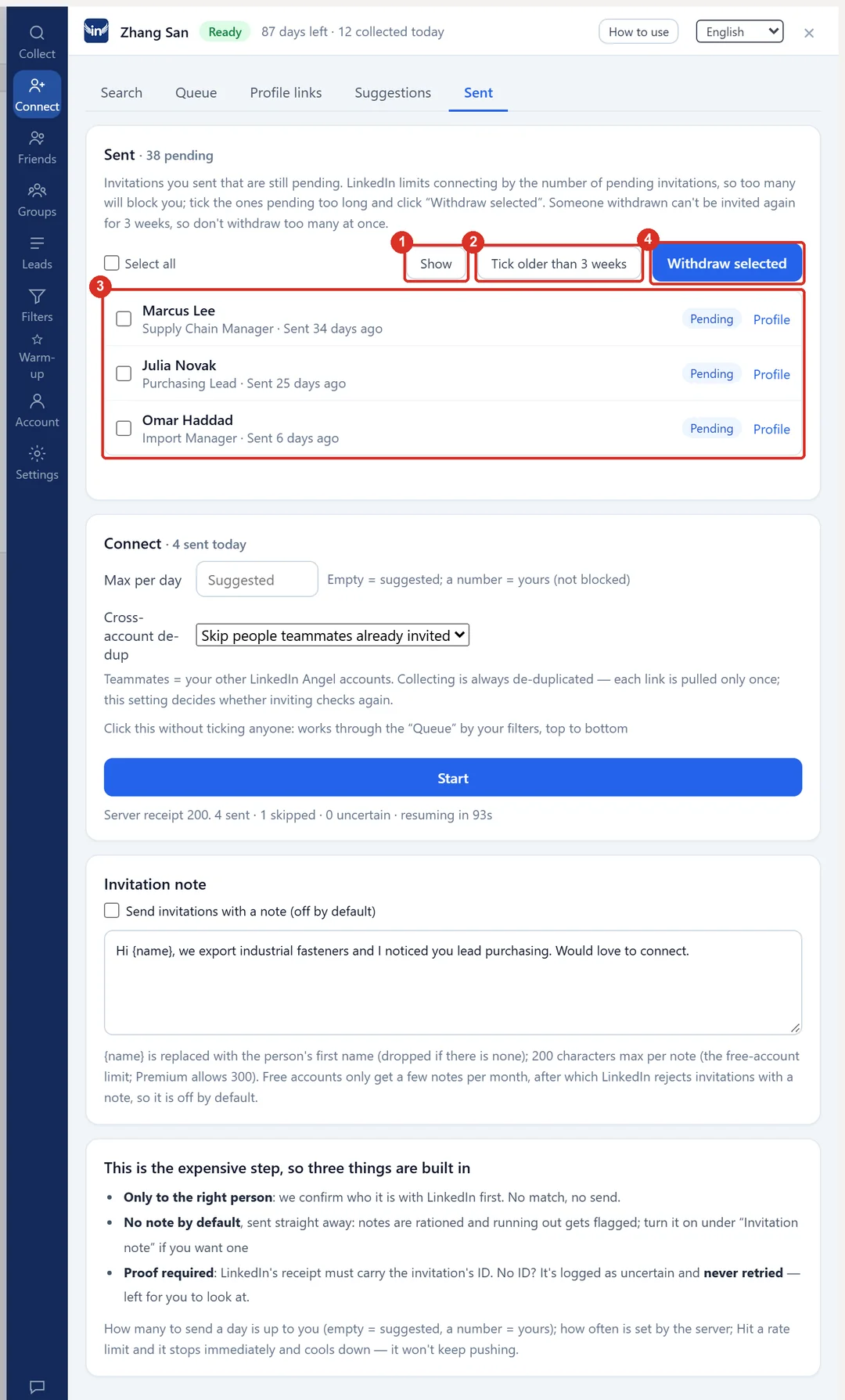
- Show: reads every invitation you sent that is still pending, oldest first, each with how many days ago it was sent
- Tick older than 3 weeks: ticks every invitation sent more than 3 weeks ago and still pending
- The sent list: name, headline, days since sending; tick the ones to withdraw
- Withdraw selected: withdraws in batches at the server's pace; whether it worked is judged by LinkedIn's own count; there is a daily limit
How to connect
- Get some people first
Fill in conditions on the “Search” tab, click “Search” and tick people; click “Show” on the “Suggestions” tab and tick people; or collect a batch from Sales Navigator on the “Collect” page; or paste links under “Profile links”.
- Fill in Max per day (optional)
10 on the first day; afterwards leave it empty to use the server's amount.
- Click “Start”
It picks people from the list who match the filters, opens their profile to confirm it is the right person, then sends the invitation without a note. Under the button it writes “X/N: sending in a few seconds” in real time. You can switch to other tabs meanwhile.
- Read this round's tally
Three numbers: sent, skipped, unsure. On a rate limit it stops and cools down by itself, then resumes when the countdown ends.
Why it works this way
Connecting is the action LinkedIn watches most closely, so three things are built in: it only invites people verified to be the right person (no match, no send); it never adds a note (notes have a limited quota, and using it up gets flagged as abnormal); after sending it must get the invitation ID from LinkedIn's receipt, otherwise it is marked unsure and never retried. The pace comes from the server; a newly bound LinkedIn account gets a smaller daily amount for the first few days, then it grows.
10. Leads
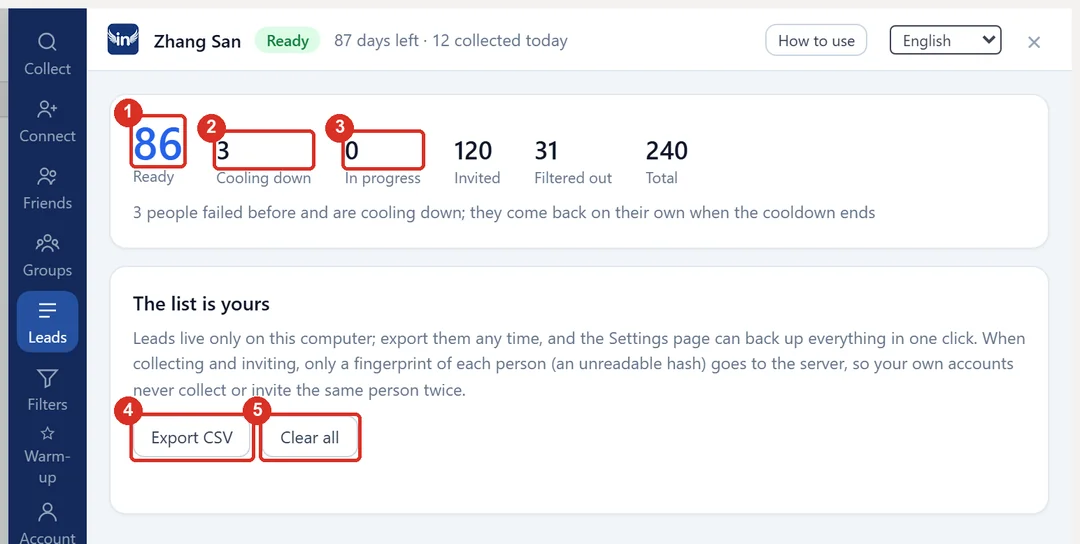
- Ready: collected, not yet invited, and available right now
- Cooling down: the last attempt failed and they are waiting out a cooldown; they come back on their own when it ends
- In progress: being used by a running invite round; if a round stopped midway, they return automatically after an hour
- Export CSV: exports everyone along with whether they were invited; opens straight in Excel
- Clear all: deletes the whole lead list, including the record of who was already invited; cannot be undone
The last three numbers are invited, filtered out and total. The list keeps one entry per profile link: collecting the same person again only fills in details, and people already invited or skipped are never invited twice.
What the exported CSV contains
| Column | Content |
|---|---|
| url | The person's public LinkedIn profile link |
| name / title / company | Name, job title, company |
| industry / region / connections | Industry, region, number of connections |
| status | Status: ready, invited, skipped, cooling down, in progress |
Moving your data to a new computer
- Back up on the old computer
On the Settings page click “Back up everything” and keep the file (leads, connections, settings and message templates are all in it).
- Install and sign in on the new computer
Licences follow LinkedIn accounts, not machines; nothing to buy again.
- Restore on the new computer
On the Settings page click “Restore from backup” and pick that file. Leads come back with their sent/unsent status, and connections keep their groups, notes and contact details; restoring only fills in what is missing and never overwrites what the new computer already has.
11. Connections
Read your LinkedIn connections (1st degree) into this computer: search, group, annotate, mine contact details, export to Excel. The list, groups, notes and contact details stay on this computer only and never pass through our server.
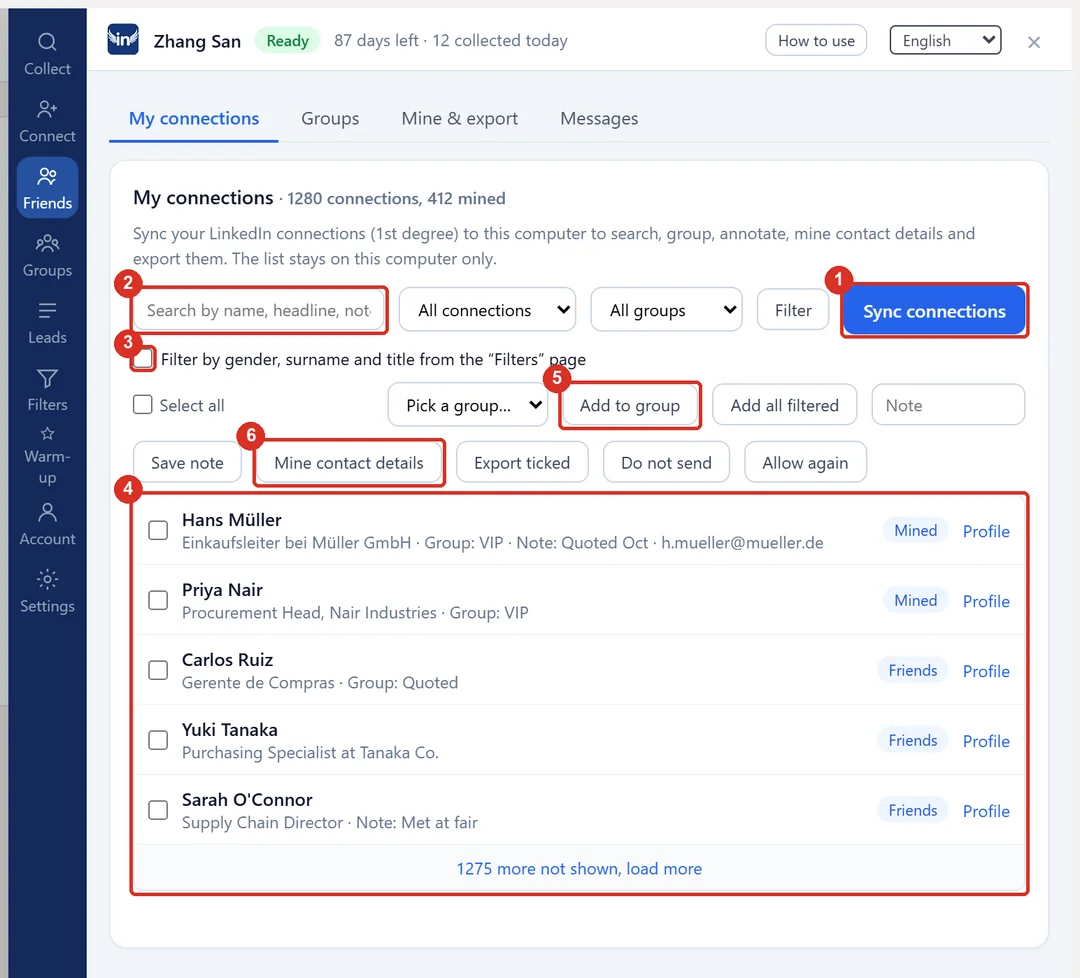
- Sync connections: reads all your connections from LinkedIn to this computer, click again to stop; click again later for new connections, it only adds and updates, groups and notes are untouched
- Search and filter: by name, headline, note; by “mined / not mined” and by group
- Filter by the “Filters” page: tick it to filter your connections by the gender, surname and title set on the “Filters” page (title is matched against the headline). The connections list only has name and headline, so region, connections, age and similar filters are ignored. If you filter by gender, connections not checked yet are looked up on the server first (only the first word of the name is sent); with many connections this takes a few seconds, and if it doesn't finish in one go, click “Filter” again to continue
- The list: name, headline, group, note, mined email and phone; tick the people to act on
- Add to group / Save note: applies to the ticked people; “Add all filtered” puts everyone in the current filter into the chosen group (the list shows 50 at a time — use it when you can't tick them all), then send messages or export; create groups on the “Groups” tab first
- Mine contact details: only the ticked people; “Export ticked” exports them as CSV; “Do not send” puts them on the do-not-send list so bulk messaging skips them
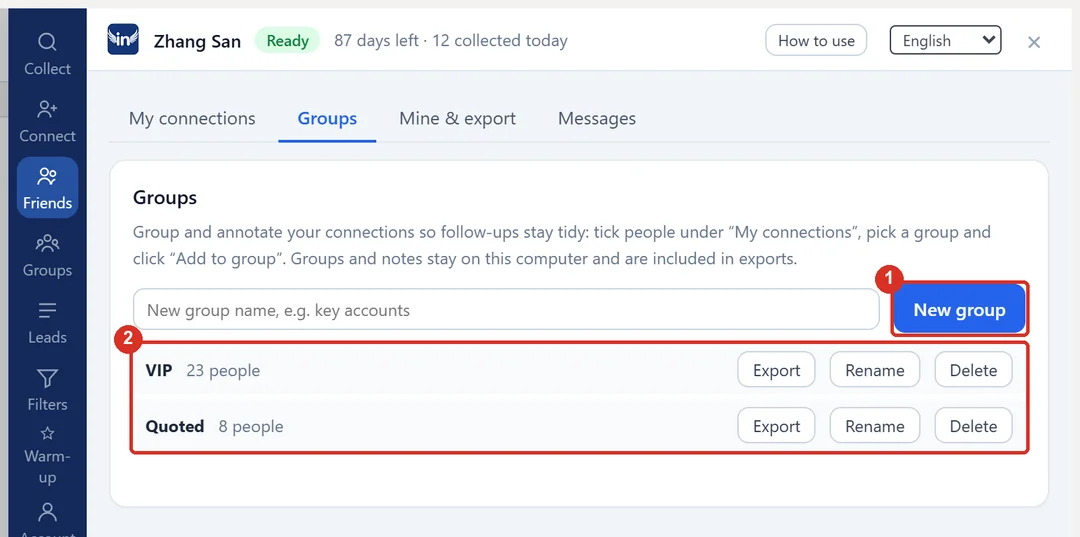
- New group: type a name and click, e.g. “key accounts” or “quoted”
- The groups: how many people in each; export this group, rename, delete (deleting a group keeps the people)
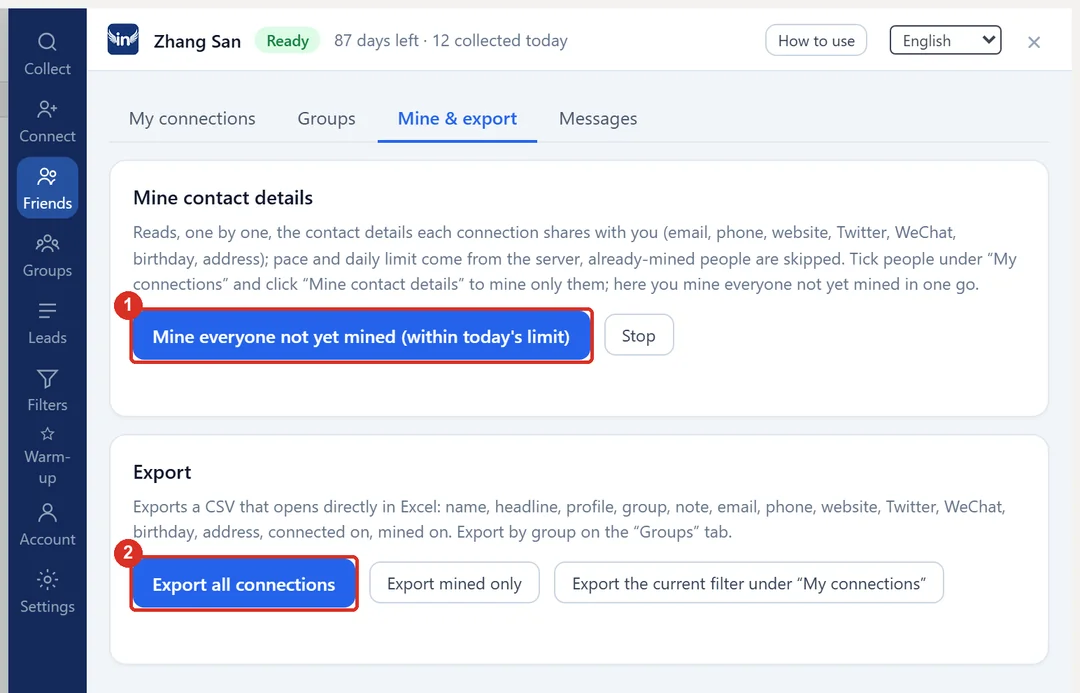
- Mine everyone not yet mined: reads contact details one by one within today's limit, paced by the server; “Stop” stops any time
- Export all / mined only / current filter: all CSV files that open directly in Excel
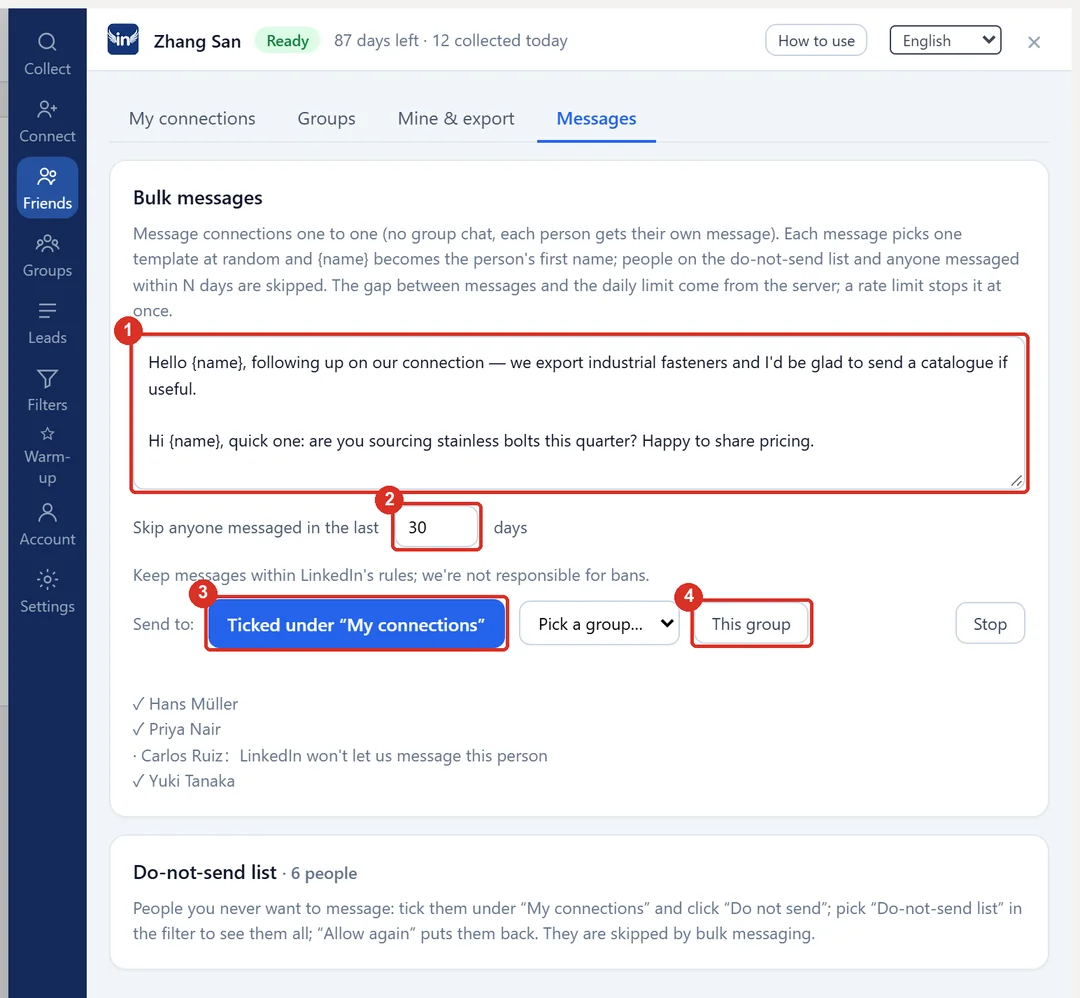
- Message templates: separate several with a blank line, one is picked at random each time; {name} becomes the person's first name, and the greeting is dropped if there is no name
- Skip anyone messaged in the last N days: 30 by default, so nobody gets bothered twice
- Send to the ticked people: tick them under “My connections” first, then click
- Send to this group: pick a group and message the whole group; “Stop” stops any time. One to one, each person gets their own message, no group chat; the gap between messages and the daily limit come from the server
How to use
- Sync first
On the “Friends” page click “Sync connections”: a few hundred take seconds, a few thousand take minutes; you can stop midway and click again later.
- Groups and notes
Create groups on the “Groups” tab first; back under “My connections”, tick people, pick a group and click “Add to group”; notes work the same way.
- Mine contact details
Tick people and click “Mine contact details”, or mine everyone not yet mined in one go under “Mine & export”. Only what the person shares with connections can be read; what LinkedIn hides is recorded as “not shown”.
- Export
The CSV opens directly in Excel with no garbled text; phone numbers are written as formulas so the leading + and 0 are kept.
- Bulk messages
Write templates on the “Messages” tab and send to the ticked people or a group; the do-not-send list and anyone messaged within N days are skipped. Tick people under “My connections” and click “Do not send” to keep them out.
12. Settings
Speed, daily limits and the safety status are all on this page. How many seconds between steps and how many a day are suggested come from the server; a daily limit you enter is used as is, nothing stops you.
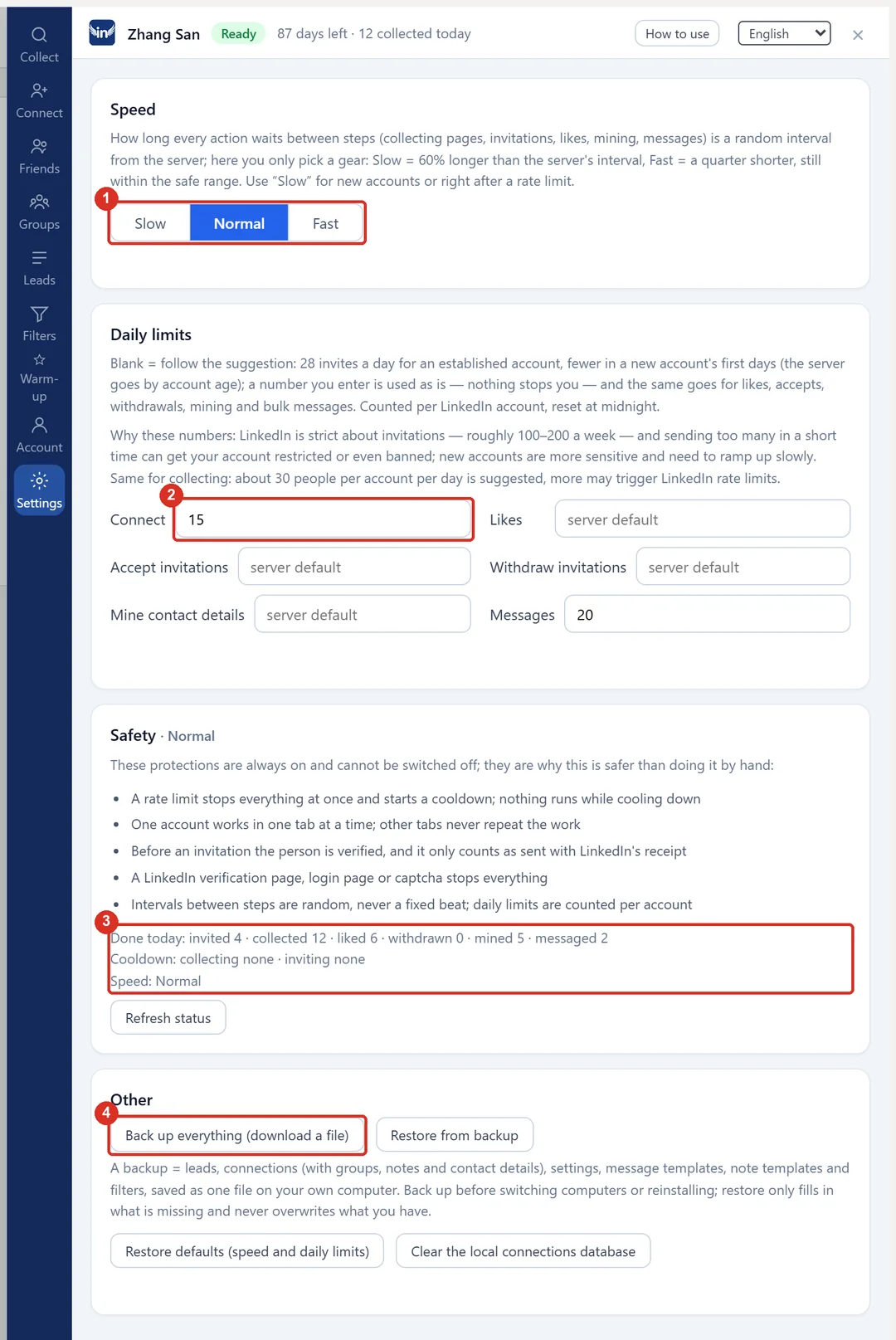
- Speed: three gears, Slow / Normal / Fast. Slow = 60% longer than the server's interval, Fast = a quarter shorter, still within the safe range; use “Slow” for new accounts or right after a rate limit; takes effect from the next run
- Daily limits: one each for invites, likes, accepting invitations, withdrawing invitations, mining contact details and bulk messages; blank follows the server's suggestion, a number you enter is used as is (nothing stops you); the invites one is the same value as “Max per day” on the Invite page
- Safety: five protections that are always on and cannot be switched off; below is how much of each was done today and whether anything is cooling down, click “Refresh status” to re-read
- Other: back up everything / restore from backup (back up before switching computers or reinstalling; restore only fills in what is missing and never overwrites), restore defaults (speed and limits), clear the local connections database (groups, notes and contact details go with it; export first)
13. Groups
LinkedIn Groups gather people around a topic; you can message and connect with them without being connected, which marketers love. The “Groups” page reads the groups you belong to, then their members; tick people to connect or message.
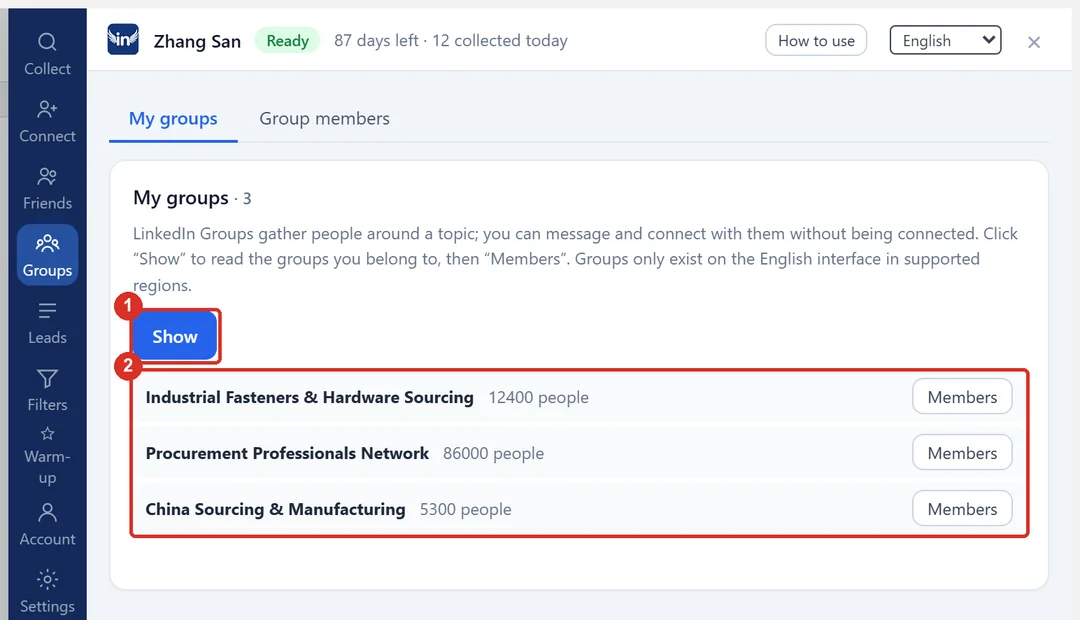
- Show: reads the groups you belong to, each with its member count; it runs by itself the first time you open this page
- The groups: click “Members” to switch to the “Group members” tab and read that group's people
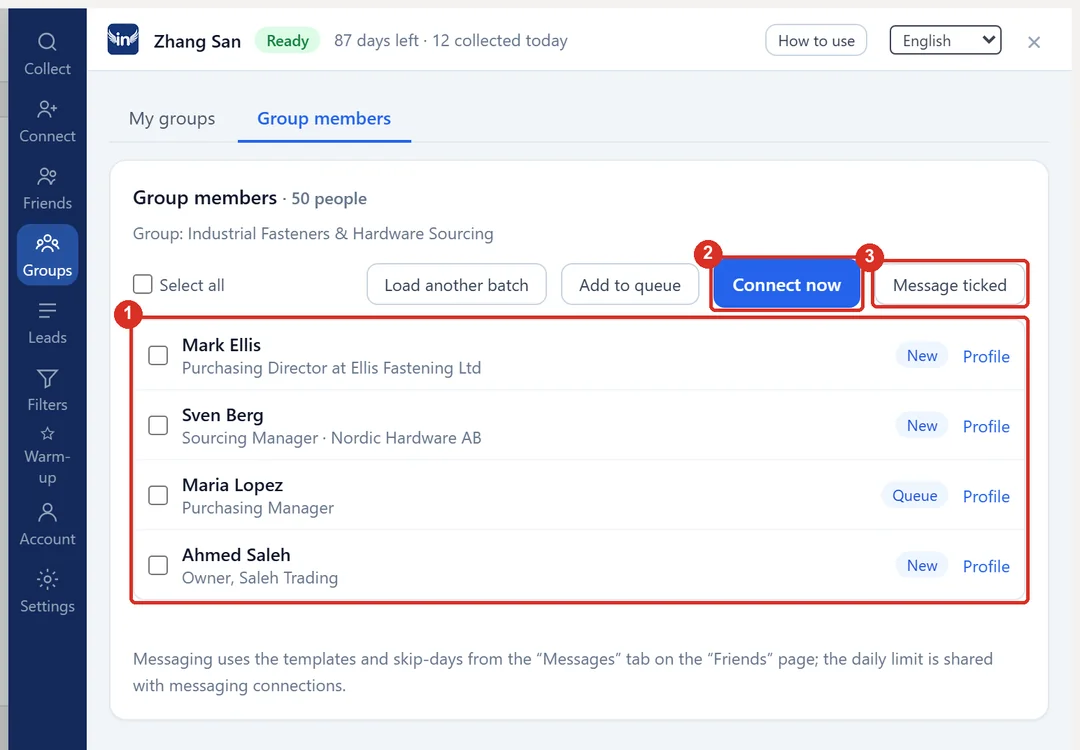
- The members: name and headline; people already in the list show their status; one batch at a time, “Load another batch” reads on
- Add to queue / Connect now: the ticked people go into the list to wait, or invitations start right away; filters don't apply
- Message ticked: uses the templates and skip-days from the “Messages” tab on the “Friends” page, one to one; the daily limit is shared with messaging connections
14. Warm-up
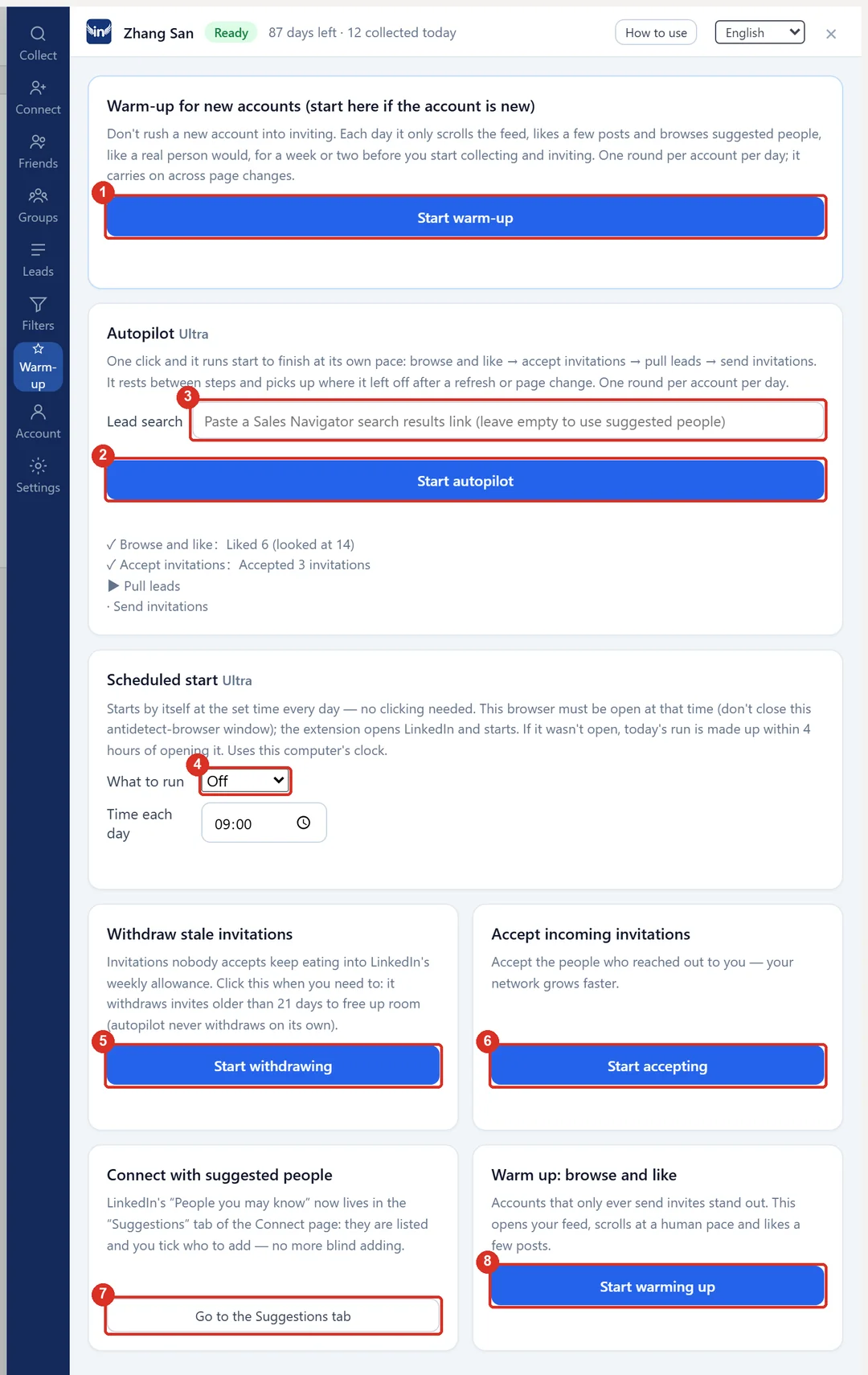
- Start warm-up: each day only scrolls the feed, likes a few posts and browses suggested people, no inviting; run this for a week or two on a new account first
- Start autopilot (Ultra): browse and like → accept invitations → pull leads → send invitations, running the whole day's amount on its own
- Lead search: paste the link of a Sales Navigator search results page and autopilot pulls people from there; leave it empty to pull from suggested people
- Scheduled start (Ultra): pick what to run and the time each day; at that time the extension opens LinkedIn and starts by itself
- Withdraw stale invitations: withdraws invitations older than 21 days that got no answer, freeing up LinkedIn's weekly quota; manual only
- Accept invitations: accepts the invitations other people sent you, one by one
- Suggested people: now listed in the “Suggestions” tab of the Connect page where you tick who to add; here there is only a shortcut to it
- Browse and like: scrolls the feed at a human pace and likes a few posts; an account that only sends invitations and does nothing else draws attention
How autopilot works (Ultra)
- Paste a search link (optional)
Run a search in Sales Navigator and copy the link from the address bar into the “Lead search” box. Without it, it pulls from LinkedIn's suggested people.
- Click “Start autopilot”
It runs at its own pace: browse and like → accept invitations → pull leads → send invitations, resting between steps, and carries on after a refresh or page change.
- Watch the progress
Under the button each step is logged line by line. One round per account per day; when done it says “Today's round is done”.
- Want it to start by itself every day
In Scheduled start on the same page, pick what to run (Autopilot / Warm-up / Connect) and the time each day; at that time the extension opens LinkedIn and starts by itself, no clicking. This browser must be open then (don't close this antidetect-browser window); if it wasn't, today's run is made up within 4 hours of opening it.
Four single tasks (also on Standard)
| Button | What it does | When to click |
|---|---|---|
| Start withdrawing | Withdraws old invitations unanswered for more than 21 days | When Connect says “this week's invitations are used up” |
| Start accepting | Accepts the invitations other people sent you, one by one | Once a day; your network grows faster |
| Go to the Suggestions tab | Jumps to the Suggestions tab of the Connect page | When the list is empty and you do not want to search |
| Start warming up | Opens the LinkedIn feed, scrolls and likes a few posts | In the first days of a new account, or when it only ever sends invitations |
15. Account page
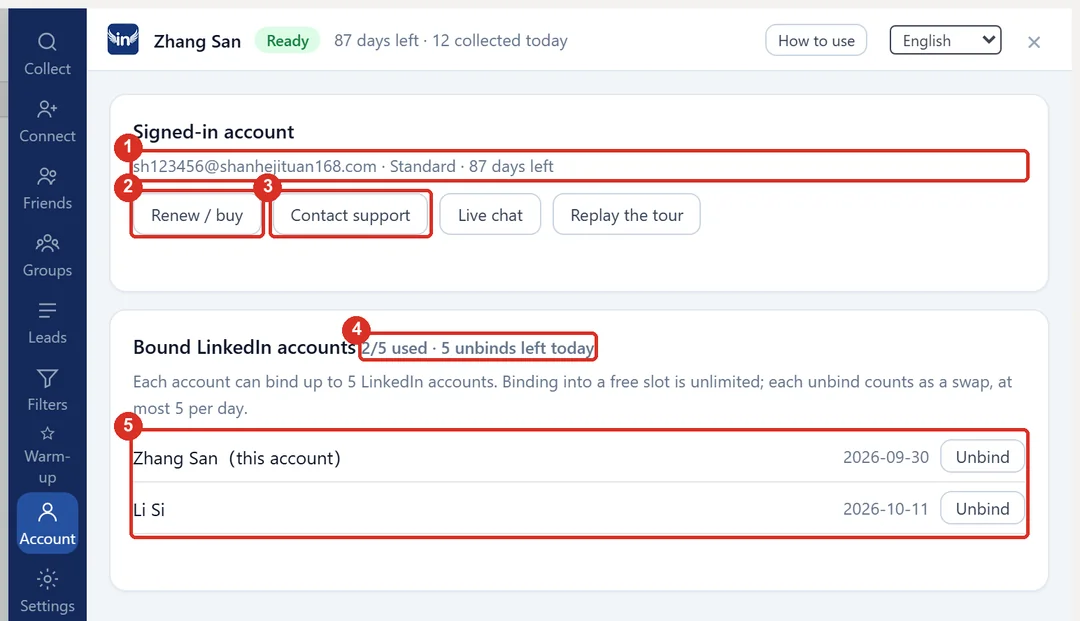
- Signed-in account: email, plan and expiry date
- Renew / buy: goes to the account page on the website
- contact us
- Slots used and unbinds left today: with a free slot you can bind new accounts without limit; unbinding is capped at 5 per day
- Bound LinkedIn accounts: to switch, click “Unbind” to free a slot, then authorize on the new account
“Replay the tour” shows the step-by-step tour from the first time the panel was opened again; “Contact support” first shows support's Telegram username, so if t.me will not open you can search for it inside Telegram. “Live chat” is the AI support: ask about installing, using or paying right inside the panel (there is also a button at the bottom of the sidebar); if the AI cannot answer, contact a human.
Switching LinkedIn accounts
- A free slot: just bind
Open the panel on the new account's LinkedIn page and click “Authorize” at the top. As long as the 5 slots are not full, bind any time.
- No free slot: unbind one first
On the Account page click “Unbind” next to the account you no longer use, then bind the new one. Unbinding is capped at 5 per day, and an unbound account must be bound again before use.
16. Updating to a new version, uninstalling
Update
- Download the new version
When the panel says “New version available”, go to the website's Download page and click “Download extension” to get the new lingying-tianshi.zip.
- Overwrite the old folder
Extract it and copy all the files into the original extension folder, choosing “Replace” when asked. It must be the original folder, so your lead list and settings survive.
- Reload
Open chrome://extensions, click the refresh icon (round arrow) on the LinkedIn Angel card, then refresh the LinkedIn page. Most LinkedIn changes are fixed server-side; when an update is needed the panel tells you — overwrite and reload, one minute, no data lost.
Disable, uninstall
Turning off the switch at the bottom right of the LinkedIn Angel card in chrome://extensions disables it; the data stays and it works again when turned on. “Remove” uninstalls it and deletes the lead list with it, so export a CSV from the Leads page first. Your account is unaffected; reinstall and sign in.
17. Your trial week
- Day 1: small batch
Collect 30, send 10. Watch each result line and make sure “Sent” is climbing.
- Days 2–3: the server's amount
Leave “Max per day” empty and let it run at the server's amount. A newly authorized LinkedIn account is held to a smaller daily amount for its first few days automatically — nothing for you to cap.
- Standard: one account, one browser
Signing in on another browser kicks the first one out and stops whatever was running. To run several accounts at once, choose Ultra (up to 5 browsers at once) or buy more accounts.
- Switching computers
Back up everything on the old computer's Settings page; after installing on the new one, restore from backup on its Settings page. No need to buy again — just sign in.
18. Every panel message explained
The messages the panel can show, grouped by where they appear. See one you do not recognise? Look it up here.
Top bar and sign-in
| Message | Meaning | What to do |
|---|---|---|
| Not authorized | The current LinkedIn account is not bound to your account yet | Click “Authorize” at the top of the panel; if all slots are used, unbind one on the Account page |
| LinkedIn account not detected | The extension could not read who is signed in | Make sure you are signed in to LinkedIn and refresh the page; the extension retries every few seconds |
| Not signed in to LinkedIn / This is the sign-in page | The browser is not signed in to LinkedIn | Sign in to linkedin.com first |
| Server unreachable | No network path to our server | Check your connection; if the network is fine, wait a few minutes and try again, it also shows for a second or two while the server restarts |
| Subscription expired | The sub-account has expired | Renew and it resumes at once; the login stays the same |
| Signed in on another browser, signed out here | The same account signed in on another browser | Stick to one browser; to run several at once, choose Ultra or buy more accounts |
| More than 5 browsers signed in at once | An Ultra account signed in on a 6th browser | The one idle the longest is signed out; up to 5 browsers at once |
| New version X available | A new version is out | Update as in section 13 |
| Extension check failed | This extension package was modified, or was not downloaded from the official site | Download and install again from the website |
Connect tabs, connections, groups, settings
| Message | Meaning | What to do |
|---|---|---|
| No people read on this page; wait for the page to finish loading, then click the “Search” tab again | The search page hasn't rendered its results yet | Wait two seconds and click ↻ to re-read; if it never reads, LinkedIn may have changed the page, contact support |
| Everyone ticked is already invited, in progress or cooling down; nobody left to add | None of the ticked people is “queued” | Tick other people, or check their status on the “Queue” tab |
| Connecting is in progress; wait for this round to stop | One account runs only one connecting round at a time | Click “Stop” on the “Connect” card, or let it finish |
| Rate-limited by LinkedIn — stopped on purpose | LinkedIn returned a rate-limit code | Wait for the cooldown, set speed to “Slow”, don't switch accounts to push through |
| LinkedIn does not show this person's contact details / won't let us message this person | They haven't shared it, or they are not a connection | Skipped normally, nothing to do |
| LinkedIn id not found, skipped | This person's profile doesn't resolve to a member id | Sync connections once and send again; if it never resolves, they changed their profile address |
| Today's limit for this item is reached, come back tomorrow | This item hit its daily limit (the server's or the one you set in Settings) | It resets after midnight; don't raise the server limit |
| You belong to no groups, or LinkedIn doesn't show them | The groups interface returned nothing | Make sure LinkedIn is in English and your region supports groups; if still nothing, contact support |
Collect
| Message | Meaning | What to do |
|---|---|---|
| Go to a Sales Navigator search page | This is not a Sales Navigator search results page | Search as in section 6, then click |
| No results on this page yet | The results have not loaded yet | Wait for the page to finish loading, then click |
| Rate-limited, N min before collecting again | LinkedIn limited this account; it is cooling down | Wait for the countdown to end; do not switch accounts and push on |
| Daily limit reached (N/cap) | Today's amount is used up | Back tomorrow |
| Not fully rendered / The page layout may have changed | The extension would rather stop than take incomplete data | Refresh and try again; if it persists contact support, it is fixed on the server side |
| Another tab is collecting | The same account runs in one tab at a time | Stop it there first, or wait for it to finish |
| Search exhausted: LinkedIn says there are no more results | The search results ran out | Change the search and run another page |
| LinkedIn redirected to another page — deal with it, then collect again | LinkedIn showed a verification page or sent you elsewhere | Sort it out on LinkedIn first, then go back to the search page and click Start |
| Network dropped or timed out — the page was discarded, nothing saved | The page wasn't fully read; better nothing than half a page | Once the network is back, click Start again — it continues from this page |
| LinkedIn only allows 100 pages — change the search filters and collect again | One search can be paged 100 pages at most | Change the search filters and collect again |
| (resumed from page N) | It stopped on this page last time and continues from here | Normal; to start over instead, change the search filters |
| Line X: not a valid /in/ profile link | The pasted link has the wrong format | Only public profile links starting with linkedin.com/in/ are accepted |
Connect
| Message | Meaning | What to do |
|---|---|---|
| Your list is empty / No one left matching your filters | Nobody in “Ready” | Collect a batch first, or loosen the filters |
| N sent · N skipped · N unsure | This round's tally | Unsure ones are never resent; they are left for you to look at |
| LinkedIn says we're sending too fast, resting X min | LinkedIn flagged the pace; this lead went back to the list | It waits on its own; nothing to do |
| LinkedIn says this week's invitations are used up | LinkedIn's weekly invitation quota is used up | Withdraw stale invitations on the Warm-up page, or wait for next week |
| Already invited this person recently / An invitation was already sent | LinkedIn has a pending invitation for this person | Skipped, as it should be |
| Couldn't confirm this person's identity, not sent | After opening the profile it did not match the right person | Skipped, as it should be; nothing is sent blindly |
| Hit a risk page / A CAPTCHA appeared, stopped | LinkedIn showed a verification challenge | Pass the check manually on LinkedIn and run again a little later |
| Signed out, stopping until you sign in again | LinkedIn signed you out | Sign in to LinkedIn again and click Start |
| LinkedIn's weekly limit was hit today — no more invites today; tomorrow one probe invite | LinkedIn's weekly invitation quota is used up | Tomorrow it sends one probe invite by itself; if it passes, the quota reopens |
| Inconclusive response — this round stopped | LinkedIn's response doesn't show whether it was sent | Wait a bit and click Start again; if it keeps happening, contact support |
| N failures in a row — this round stopped | Something's wrong with the network or the LinkedIn page | Check the network and the LinkedIn page, then click Start |
| Hit a security check or verification page — cooling down X min | This account hit a verification page; the server cools it down for 6 hours | Clear the verification on LinkedIn first, then run again when the time is up |
| New account: browsing only is suggested for the first few days, no invites | A brand-new account (under 50 connections); the server ramps up by account age | Run the new-account warm-up first; it opens up by itself after a few days |
| N people are still marked “in progress” | The last run stopped midway | After an hour they return to Ready automatically; nothing to do |
Nurture
| Message | Meaning | What to do |
|---|---|---|
| This is an Ultra feature | Autopilot and scheduled start are Ultra-only | Upgrade to Ultra under “My account” on the website; the login stays the same. The four single tasks below work on Standard |
| This account has already done today's round | Autopilot runs one round per account per day | Back tomorrow |
| It's time, but the extension isn't signed in | The extension isn't signed in, or it was signed in on another browser and this one was signed out | Sign in to the extension; it starts automatically within 4 hours |
| It's time, but LinkedIn isn't signed in (logged out) | At the scheduled time, LinkedIn wasn't signed in on this browser | Sign back in to LinkedIn; the extension retries every 10 minutes for up to 4 hours |
| It's time, but LinkedIn wants to verify this account | LinkedIn wants to verify this account | Complete the verification on LinkedIn; the extension retries every 10 minutes for up to 4 hours |
| That's enough of this for today | Today's amount for this task is reached | Back tomorrow |
| Hit a LinkedIn check, autopilot stopped | Autopilot ran into a verification or a rate limit midway | Handle the reason shown after it, then run again tomorrow |
| Idle between X:00 and Y:00 — resumes after that | The autopilot doesn't work at night | It resumes on its own; nothing to do |
| Already did today's feed round | One feed round a day | Back tomorrow |
| New account: no likes today, just scrolling the feed for a bit | A brand-new account only browses for the first few days | Normal; it opens up by itself after a few days |
| No invitations older than X days | Nothing to withdraw | Nothing to do |
| LinkedIn has no suggestions right now | The suggestions list is empty | Collect with a search link instead, or come back in a few days |
19. FAQ
Do I need a VPN?
The extension follows your browser: wherever the browser can open LinkedIn, the extension works. If you route traffic with PAC or split rules, add linkedin.com and licdn.com to the rules. Our server is reachable with or without a proxy; if it cannot connect, try global mode.
Will my account get banned?
The pace comes from the server and mimics real people, with a smaller amount for new accounts in the first days; it stops and cools down the moment it hits a rate limit; it only invites people verified to be the right person; it never adds a note. Run at the default pace without forcing it and the risk is low. Never run one LinkedIn account on several computers or in several tools at the same time.
Is it tied to my computer? Do I have to buy again on a new one?
It binds LinkedIn accounts, not computers. On a new computer just install and sign in — no need to buy again; back up everything on the old computer's Settings page and restore it on the new one, and leads, connections and settings all come along.
Can I use it on several computers at once?
On Standard an account can be signed in on one browser at a time; signing in elsewhere kicks the other one out. On Ultra, up to 5 browsers can be signed in at once, each running its own LinkedIn account. For more computers at once, buy more accounts.
The icon is gone / the extension disappeared
A browser update can disable extensions: type chrome://extensions in the address bar and check the switch. The icon may be tucked under the puzzle-piece button at the top right; click the pin to keep it visible. If it is really gone, reinstall from the download page; your lead list is still there after you sign in.
Does it work without Sales Navigator?
Collecting relies on Sales Navigator search results. Without it, use “Import links”: paste the profile links you have, or click “Scan page” on someone's profile. Connecting and warm-up do not need Sales Navigator.
The sent count does not match what I see on LinkedIn?
“Sent” only counts invitations with a LinkedIn receipt; those without one are marked unsure and never resent. LinkedIn's “My Network → Manage → Sent” shows what actually went out; treat that as the truth.
Which browsers are supported?
Chrome, plus Edge and other Chromium browsers. Not phones or tablets.
Where is the lead list stored? Can I lose it?
Only in this computer's browser, never uploaded. Uninstalling the extension or clearing browser data deletes them; export a CSV from the Leads page every few days, or back up everything in one click on the Settings page (leads, connections and settings in one file). Back up before switching computers or reinstalling.
Is the list still there after my subscription expires?
Yes. The list is on your computer and does not depend on the subscription. After renewing, your login stays the same and everything resumes at once.
Can you see my customer list?
No. The list itself is never uploaded; when collecting and inviting, only a fingerprint that reveals nobody's identity is sent, so your own accounts do not collide.
What if LinkedIn changes its interface?
Which buttons to use on the page and which endpoints to call are sent from the server, so most LinkedIn changes we fix on the server; when the extension needs an update the panel tells you — overwrite and reload, one minute, no data lost.
How do I see my sent invitations?
LinkedIn's “My Network → Manage → Sent”. Those unanswered for more than 21 days can be withdrawn in one click on the Warm-up page.
I signed in with Google — how do I set a password?
Go to “My account”, scroll to “Login password” and set one; after that you can also log in with email + password (handy where Google is blocked). You can also click “Forgot password?” on the login page and set it via the emailed link.
The panel is in English / I want another language
There is a language dropdown at the top right of the panel, and another at the top right of the website; each switches on its own, with 10 languages including Chinese and English.
20. Contact us
Click “Contact support” on the panel's Account page, or use the contact in the website footer. If a reseller gave you the account, contact the reseller. For anything not listed here, send us the exact message the panel shows and we can look it up directly.
If t.me won't open, search for this username inside Telegram and add it.
This guide is updated with each extension version. The latest version is online at: