Download and install
Chrome only (and Chromium-based browsers like Edge). No restart needed.
Anti-detect browsers (AdsPower, ixBrowser, Hubstudio, etc.) work too: pick the Chrome kernel when creating a profile, and install the extension in each profile. Firefox-kernel profiles (such as AdsPower's FlowerBrowser) are not supported.
Install it (three steps)
- Unzip
Unzip
lingying-tianshi.zipinto a folder you'll keep — not your Downloads folder, and don't delete it after installing. Chrome reads it every time it starts.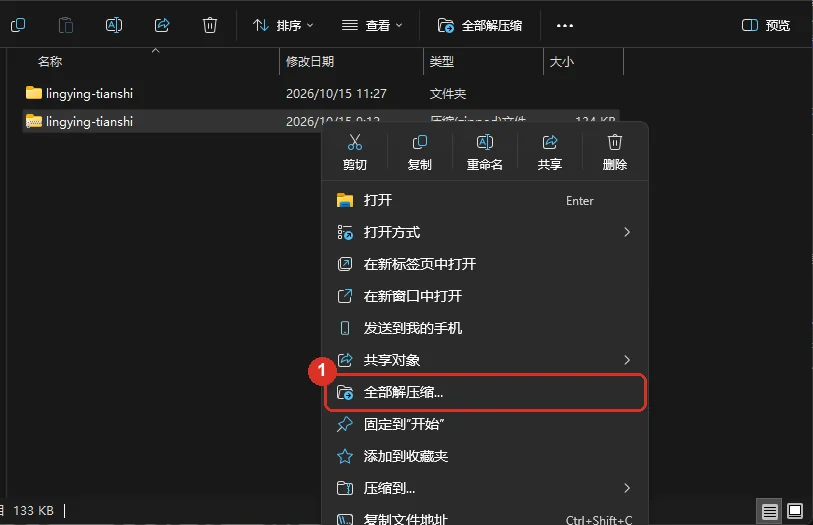
- Open the extensions page
Go to
chrome://extensionsand turn on Developer mode in the top right.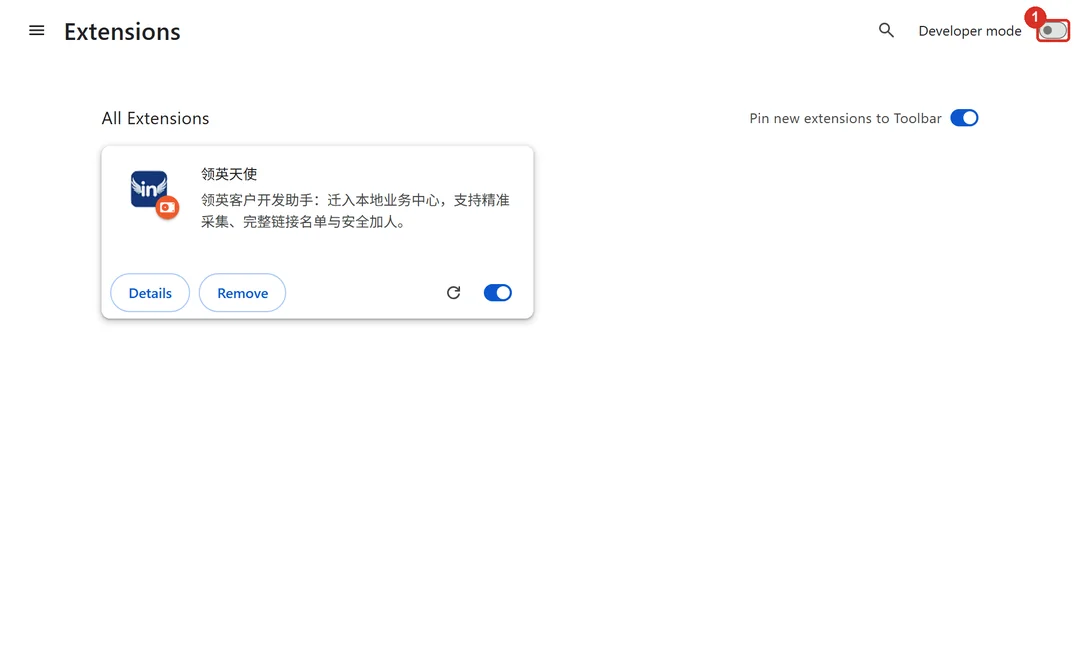
- Load it
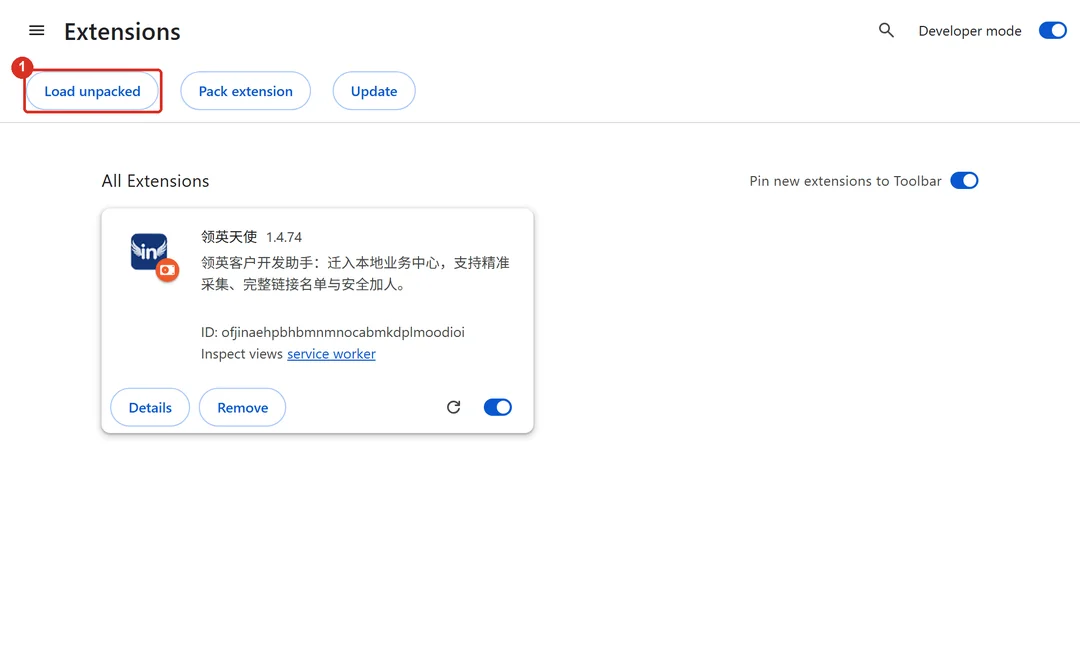
Click “Load unpacked” (older Chrome versions call it “Load unpacked extension”) and pick the folder you just extracted.
Updating to a new version
- Download the new version
Click “Download extension” above to get the new
lingying-tianshi.zip. - Overwrite the old folder
Unzip it and copy all files into the same extension folder as before, choosing “Replace” when asked. Use the same folder so your lists and settings are kept.
- Reload
Open
chrome://extensions, click the reload icon on LinkedIn Angel, then refresh your LinkedIn tab.
First run
This is only the shortest path; for what every button and number means, see the user guide →
- Sign in
Click the extension icon in the browser toolbar and sign in with one of the logins you bought (they're listed under My account on the website).
- Authorize this LinkedIn account
Open LinkedIn and click the circular icon. The top of the panel shows which LinkedIn account you're on — click Authorize. One account covers 5.
- Set your filters
On the Filters tab, describe the customers you want. Hit Preview to see how many would make it through.
- Collect a batch
Run your search in Sales Navigator, come back to the panel and hit Start — it pages through on its own.
- Connect
On the Connect tab, hit start. It sends invitations one at a time at a safe interval, and only counts one once LinkedIn confirms it. Start with a small batch the first time, and scale up once you're satisfied.
How each feature works
One-click account warm-up (Ultra)
On the panel’s Warm-up page, click “Start autopilot”: at a human pace it likes feed posts → accepts invitations → pulls profile links → sends invitations, finishing the day’s quota on its own. It carries on through refreshes and page changes and can be stopped any time. New accounts start with a smaller daily quota that grows gradually.
5 accounts at once (Ultra)
One Ultra account can be signed in to the extension on up to 5 browsers at once (for example 5 antidetect-browser windows), each window running its own LinkedIn account without getting in each other's way. A 6th sign-in signs out the one idle the longest. Standard works in one browser at a time.
Scheduled start (Ultra)
In Scheduled start on the panel's Warm-up page, pick what to run (Autopilot / Warm-up / Connect) and the time each day; at that time the extension opens LinkedIn and starts by itself, no clicking. The browser must be open then; if the extension isn't signed in, or LinkedIn is logged out or asks for verification, it retries every so often for up to 4 hours and carries on once that's fixed — and if you've linked Telegram, you get a heads-up.
Like posts, accept invitations
Available on Standard too: press the matching button at the bottom of the Warm-up page to run one round of each — for people who want to set their own pace. Suggested people are listed in the “Suggestions” tab of the Connect page, where you tick who to add.
Withdraw stale invitations
Invitations that nobody accepts keep using LinkedIn’s weekly allowance. Click “Start withdrawing” on the Warm-up page to withdraw invitations older than 21 days. This is manual only — autopilot never withdraws.
Switching LinkedIn accounts
The panel’s Account page lists the LinkedIn accounts bound to your account. To switch, click “Unbind” next to one, then click “Authorize” on the new one. Up to 5 per account; binding into a free slot is unlimited, unbinding at most 5 times a day.
Exporting your list
On the Leads page click “Export CSV” to export everyone you collected together with whether they were invited; it opens in Excel. The list only lives on this computer.
Changing language
Switch language at the top right of the panel or the web page — 10 languages in all.
When something goes wrong
It doesn't detect my LinkedIn account
Make sure you're signed in to LinkedIn, then refresh. The extension retries by itself every few seconds.
It says it can't reach the license server
Check your connection. There's deliberately no offline mode — without a connection you couldn't open LinkedIn either.
It says it's rate-limited and to wait X minutes
LinkedIn just throttled this account and the tool stopped on its own. Wait out the cooldown, don't look for a way around it — that's exactly how accounts end up banned.
Collection stops after only a few people
Read the message. If it mentions incomplete rendering or a changed page structure, the tool is protecting you — it would rather stop than pass off partial data as a full page. Message us and we'll fix it server-side.
I switched computers
Reinstall and sign in — licensing counts LinkedIn accounts, not machines. But leads, connections and settings are stored locally: back up everything on the Settings page of the old computer, then “Restore from backup” on the new one.
The extension disappeared after a browser update
Chrome occasionally disables extensions loaded in developer mode. Go back to chrome://extensions, check the toggle, or load the folder again.
Can't find it in the Chrome Web Store
The extension isn't in the store, so searching there finds nothing. The only way is to download the zip from this page and follow the three steps above — that's also why Developer mode has to be on.
“Manifest file is missing or unreadable”, or the extensions page shows nothing
Two causes. Either the zip was never really extracted — double-clicking into an archive looks like a folder but is still the archive; right-click it and choose “Extract All” first. Or the wrong level was picked: choose the folder where you can see manifest.json directly, not the one above it.
Won't install in an anti-detect browser (AdsPower etc.)
When creating the profile, pick the Chrome kernel, not Firefox. Inside that profile open chrome://extensions and follow the same three steps; each profile needs its own install, and deleting the profile removes the extension with it.