LinkedIn Angel
Reach people other tools can't
and still have an account tomorrow
Every LinkedIn tool out there competes on speed. But the moment your account gets restricted, everything you built is gone. This one works the other way round: find the right people first, then connect at a pace you can keep up for months.

See it work in 60 seconds
Three things other tools don't do
Not more features — a different way of doing these three steps.
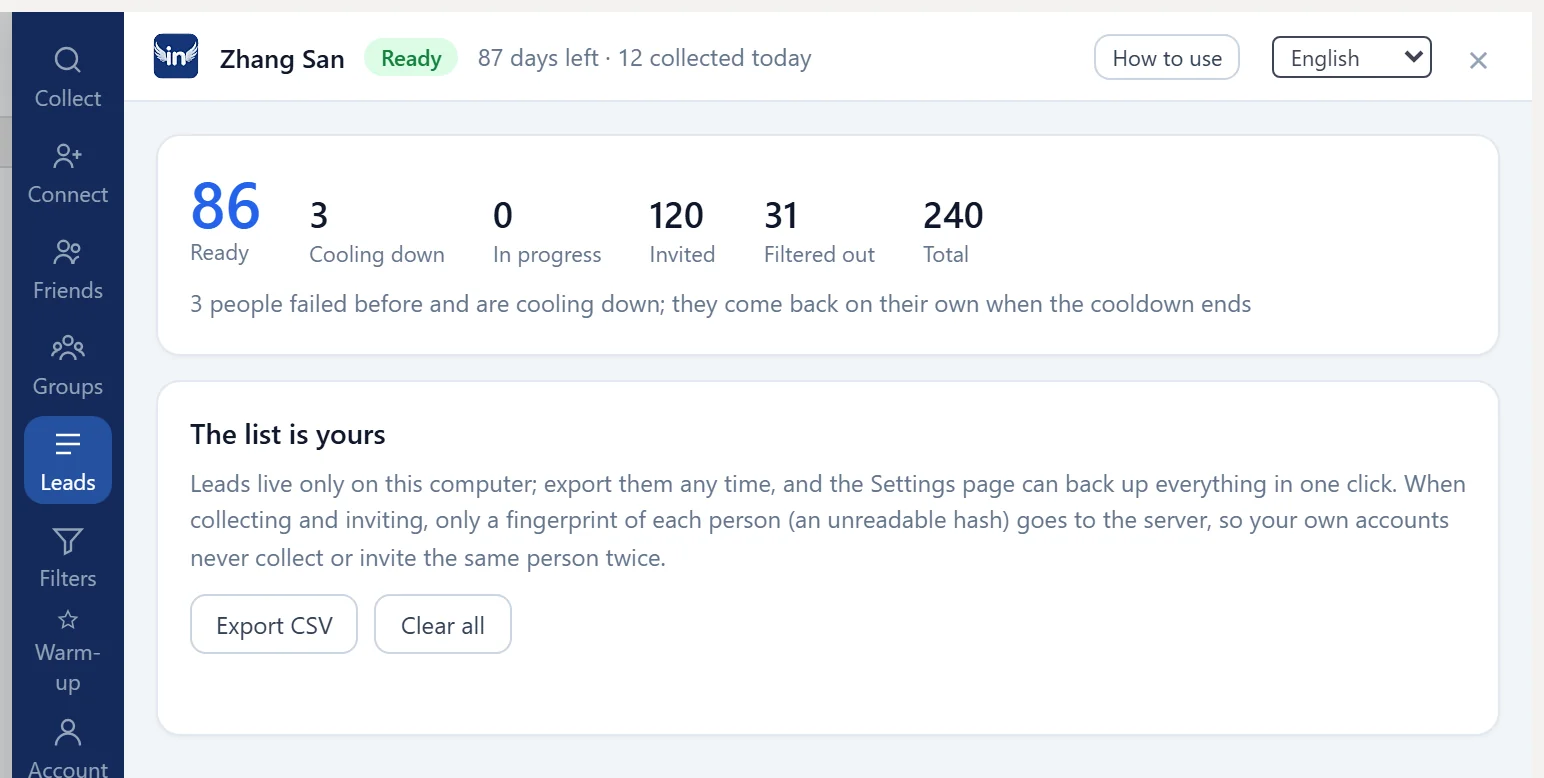
Access to the Sales Navigator pool
Sales Navigator returns internal links that a regular account simply can't connect to. We convert them into public profile URLs — so Sales Nav's targeting precision becomes people your ordinary account can actually reach. Other extensions are stuck fishing in the shallow end of regular search.
Know before you send
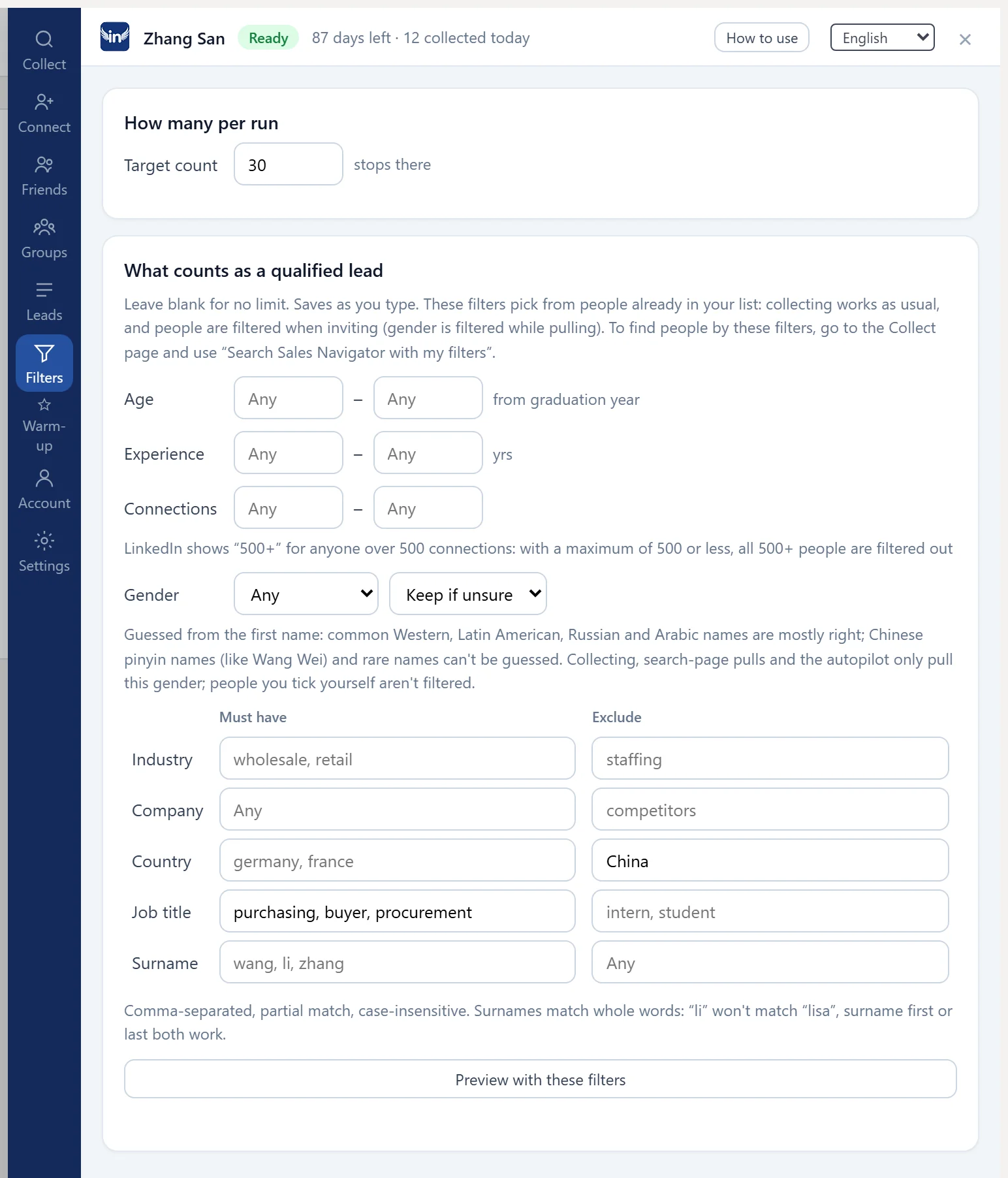
The same request that converts the link also brings back title, company, industry, country, connection count, years of experience and graduation year — without a single extra request. So you can filter by your criteria first, then decide who to approach. Other tools connect first and find out later.
Pacing learned the hard way, on real accounts
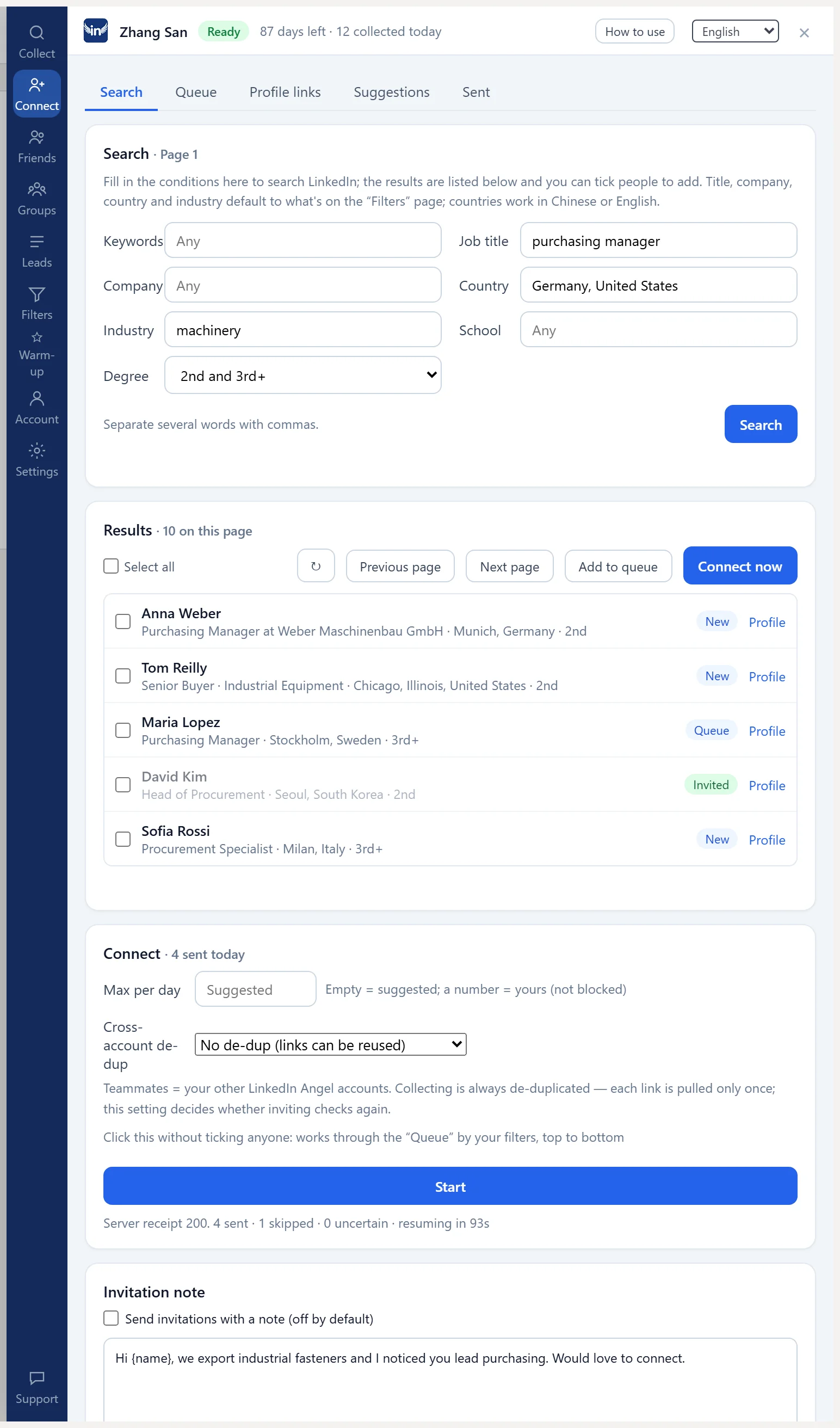
Intervals are randomized ranges, never fixed values — a steady rhythm is the single most obvious bot signal there is. The daily volume is a suggestion based on the account's age (a new account starts small for its first few days), and hitting a rate limit stops everything and starts a cooldown. There is deliberately no way to just click again and keep pushing.
Compared with what's out there
These differences only show up when something goes wrong.
| Typical LinkedIn extension | LinkedIn Angel | |
|---|---|---|
| Where it finds people | Regular search | Sales Navigator |
| Before connecting | Send first, check later | Filters out the wrong people first |
| Daily limit | Hundreds by default, adjustable to thousands | You set it; the server suggests a number based on the account's age, and a new account starts small for its first few days |
| Sending pace | As fast as it can go | 100–200 s between invites; backs off 10 minutes by itself if LinkedIn says it's too fast |
| What counts as sent | A 200 response | Only when LinkedIn's receipt carries an invitation ID |
| After a rate limit | A warning — and you can click again right away | Forced cooldown, no way around it |
| Accounts running at once per login | One browser per login | Ultra: 5 LinkedIn accounts working at once from one login |
| Does someone have to click Start? | You click Start every day | Ultra: starts on schedule every day; if you're signed out or LinkedIn logs out, it tells you and carries on once fixed |
| Same person, multiple accounts | Yes (each account and each browser pulls its own list) | No: across all your accounts and browsers each link is pulled only once; whether inviting de-duplicates again is up to you |
| Can you see the people in the panel | Runs blind, shows only numbers | Search results, suggestions and group members are listed; tick, then add |
| Connection management | None | Groups and notes, contact mining, Excel export, bulk messages, do-not-send list |
| How speed is set | You type seconds yourself | Slow / Normal / Fast, the seconds are randomised by the server |
| Your lead list | Passes through their servers | Never leaves your computer |
Your list belongs to you
Your collected list stays on your own computer — the list itself is never uploaded — and you can export it as a spreadsheet any time. When collecting and inviting, only a fingerprint that doesn’t reveal who the person is gets sent, so your own accounts don’t collide. Anyone in this business knows: sending your lead list through someone else’s server is handing over your lifeline.
What LinkedIn Angel does
From finding people in Sales Navigator and exporting leads, to auto-connecting, warming up accounts, and exporting and messaging your connections — LinkedIn lead generation in one Chrome extension.
Sales Navigator export
Pages through results, converts them to public LinkedIn profile links, filters before saving, and exports to Excel in one click.
LinkedIn auto connect
Sends invitations in batches at a server-set pace, confirms each person, counts only confirmed invitations, and stops at the first rate limit.
LinkedIn account warm-up
New accounts automatically scroll the feed, like posts and accept invitations, ramping up day by day with account age and resting at night.
Export and message LinkedIn connections
Sync connections to your computer, group and annotate them, mine contact details, export to Excel, and send one-to-one messages from templates.
Several accounts at once, scheduled start (Ultra)
Run 5 LinkedIn accounts at once from one account; every day at the set time it opens LinkedIn and gets to work by itself — no clicking, fully automated.
More: how to find clients on LinkedIn, safe daily connection limits, restricted accounts →
Getting started
- Sign up and buy
Register a main account, choose how many to buy, and the logins are generated as soon as you pay.
- Install the extension
Download and unzip, then on chrome://extensions click “Load unpacked” and pick that folder; an icon appears at the top right.
- Authorize your LinkedIn account
Each account covers 5 LinkedIn accounts, and you can swap them out.
- Search, tick, add
Search with conditions in the panel, or collect from Sales Navigator results; tick the listed people to add them, the rest runs by itself.